Step 1 — Buy the Domain & Set Up Cloudflare
Went to Namecheap and bought apex-corp.xyz. A .xyz domain costs about $1–3 a year, which is fine for a lab. Nothing special here — just needed a real public domain to use with Cloudflare DNS, and later for Exchange and the portal.
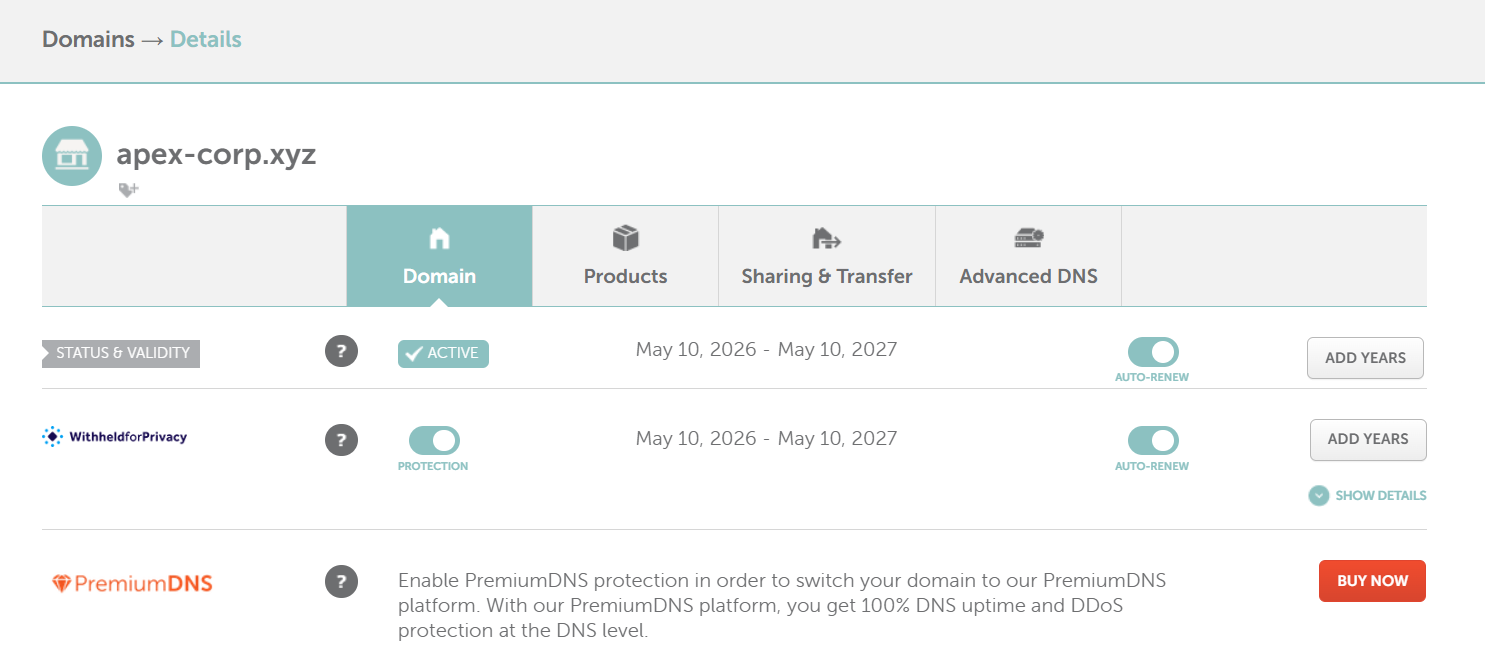
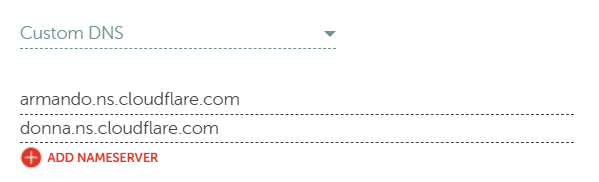
Created a free Cloudflare account, added the domain, and Cloudflare gave two nameservers. Went back into Namecheap, deleted the default nameservers, and replaced them with Cloudflare's ones.
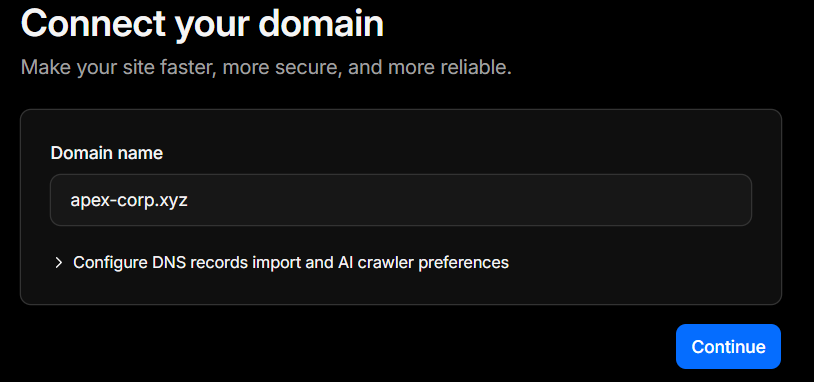
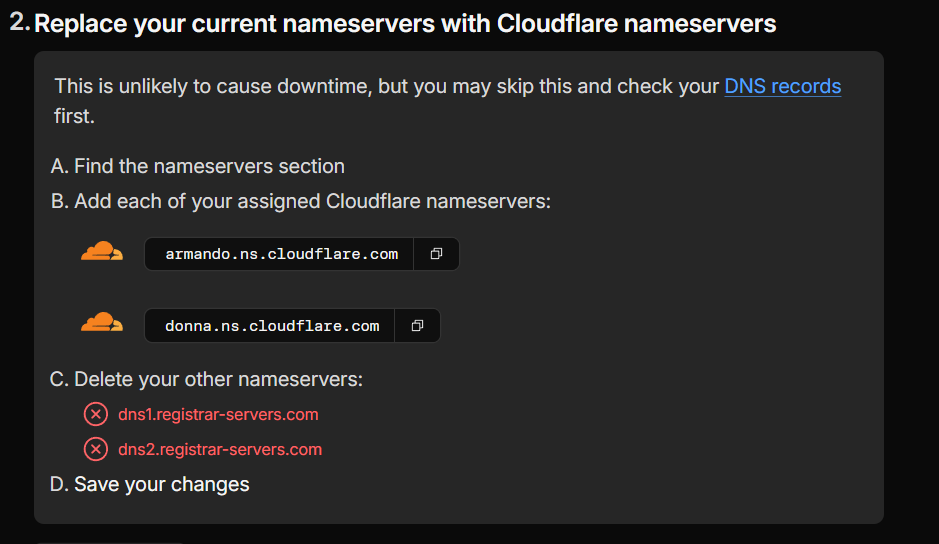
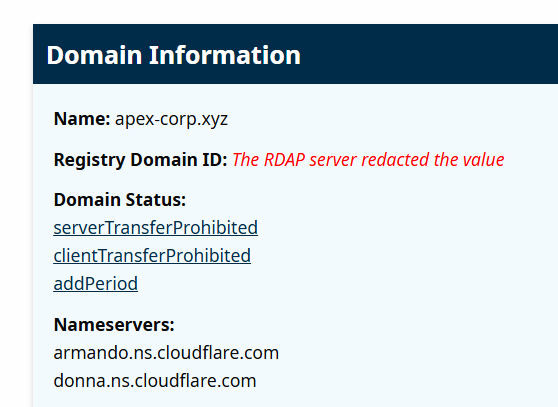
Used a third-party DNS checker to verify the nameservers had propagated. Takes about 10–30 minutes.
Once propagated, added DNS A records inside Cloudflare:
| Type | Name | Content | Proxy |
|---|---|---|---|
| A | @ | Vultr public IP | DNS only (grey cloud) |
| A | hq | Vultr public IP | DNS only (grey cloud) |
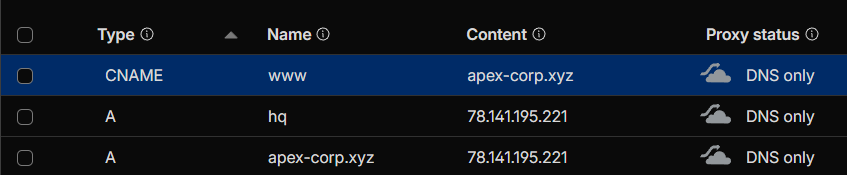
Any record pointing at an actual server (RDP, WireGuard, SMTP, Active Directory) must have the Cloudflare proxy turned OFF. Orange cloud only forwards HTTP/HTTPS. Everything else — including AD authentication — breaks silently.
Step 2 — Deploy the VPS on Vultr
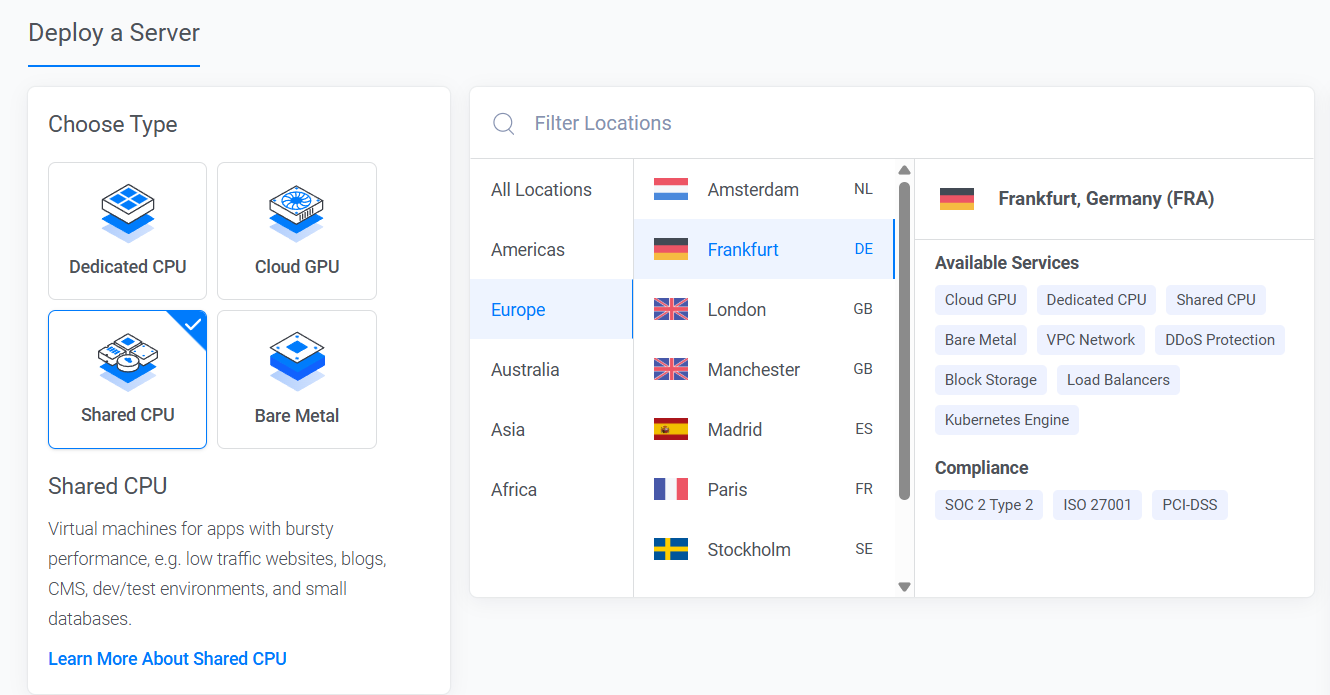
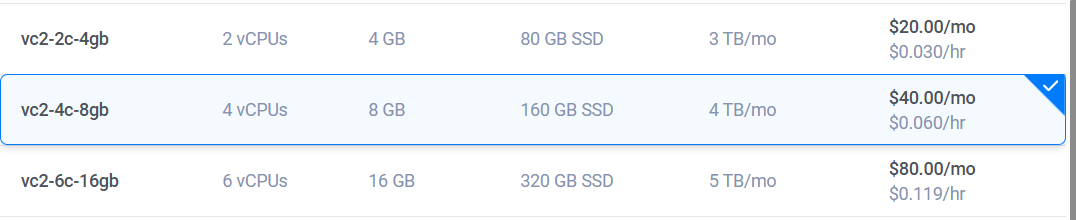
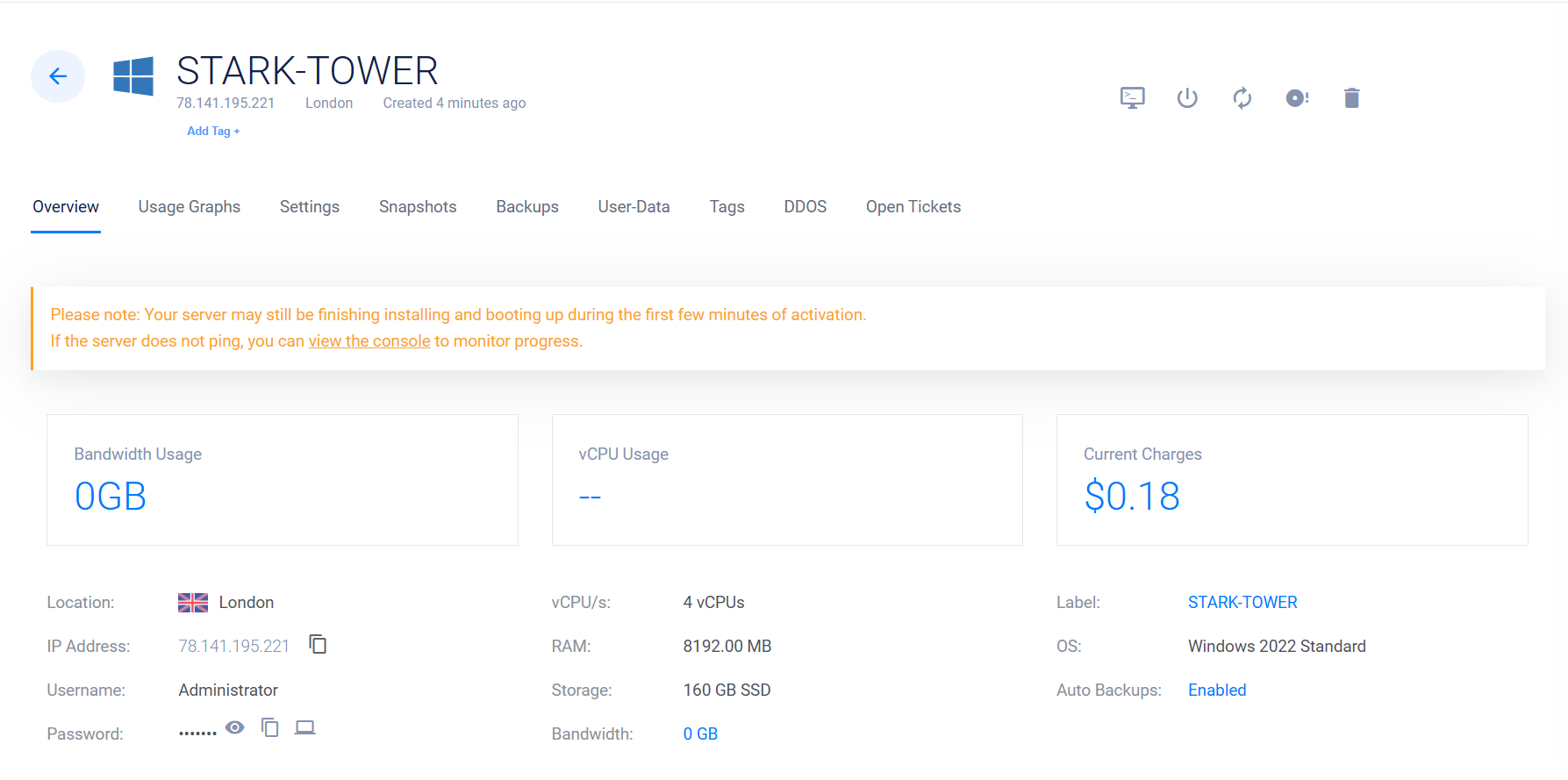
Logged into Vultr, deployed a new Cloud Compute — Shared CPU instance. Set the hostname to STARK-TOWER and deployed. Specs used:
| Setting | Value |
|---|---|
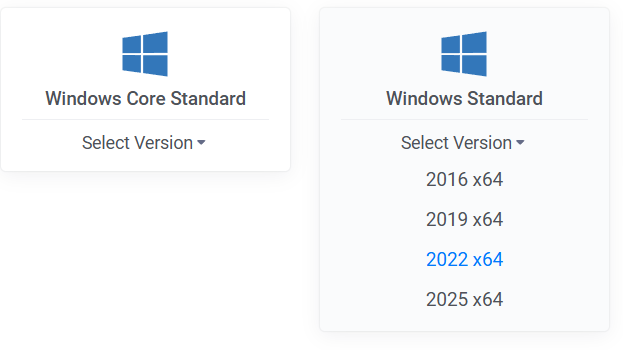
| OS | Windows Server 2022 Standard |
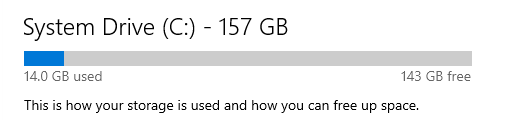
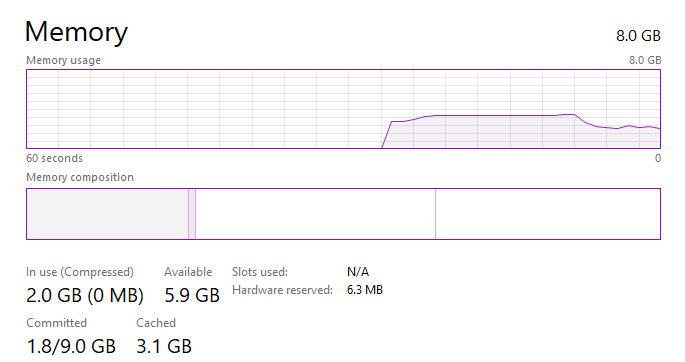
| Plan | 4 vCPU, 8 GB RAM, 160 GB SSD |
| Region | Europe (Frankfurt / Amsterdam) |
| Hostname | STARK-TOWER |
Created a Vultr Firewall Group called apex-lab with these inbound rules:
| Protocol | Port | Source | Purpose |
|---|---|---|---|
| TCP | 3389 | Your home IP only | RDP (Remote Desktop) |
| UDP | 51820 | 0.0.0.0/0 | WireGuard VPN |
| TCP | 443 | 0.0.0.0/0 | HTTPS / AD CS web enrollment |
Step 3 — Connect via RDP
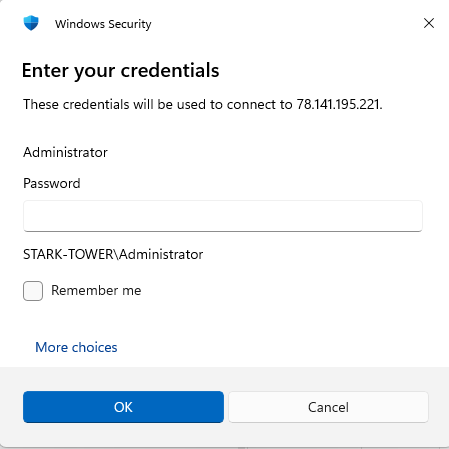
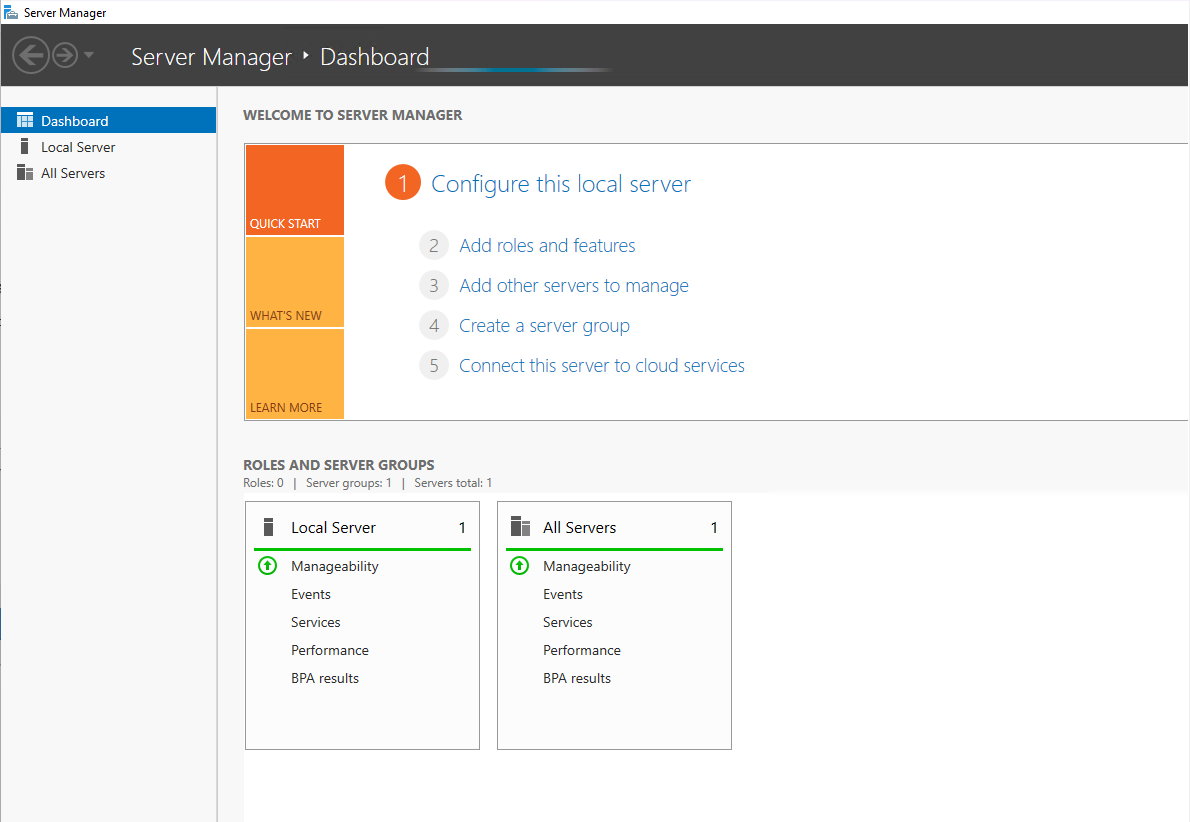
Used the Remote Desktop Connection app on the local machine, entered the Vultr public IP, and logged in with the Administrator credentials from the Vultr dashboard.
Server Manager loaded automatically after login. That is the sign the machine is ready.
Checked disk and RAM to make sure the plan matched what Vultr showed.
Step 4 — Configure DNS and Install AD DS
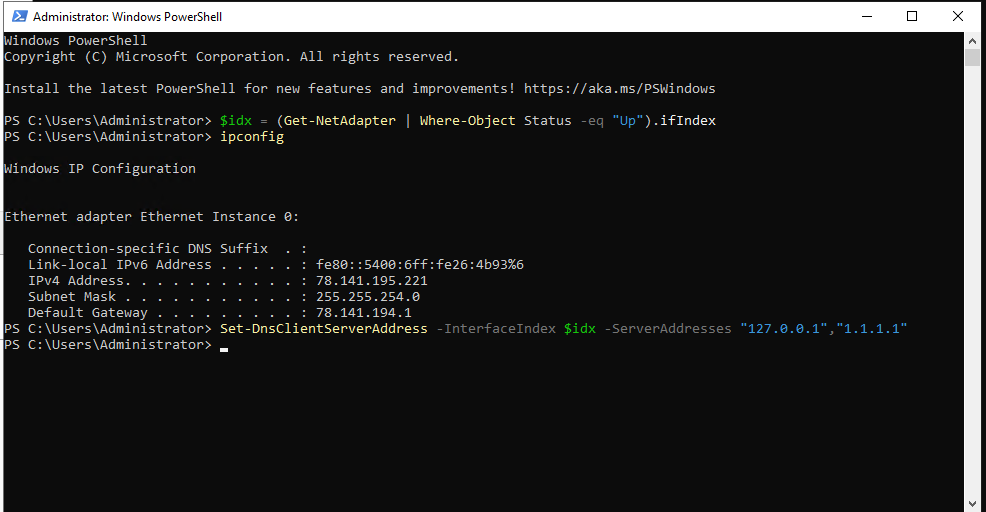
Opened PowerShell as Administrator. First set DNS to point at itself (localhost) so AD can work. Active Directory needs to resolve its own domain name.
PS> $IDX = (Get-NetAdapter | Where-Object {$_.Status -eq "Up"}).ifIndex
PS> Set-DnsClientServerAddress -InterfaceIndex $IDX -ServerAddresses "127.0.0.1","1.1.1.1"
Then installed the Active Directory Domain Services role:
PS> Install-WindowsFeature -Name AD-Domain-Services -IncludeManagementTools


Step 5 — Create the Forest
Ran the command to create the AD forest root domain hq.apex-corp.xyz. The DSRM password is a recovery password you would need if the DC ever lost its AD database — keep it safe. The server reboots automatically after this.
Install-ADDSForest `
  -DomainName "hq.apex-corp.xyz" `
  -DomainNetbiosName "HQ" `
  -ForestMode "WinThreshold" `
  -DomainMode "WinThreshold" `
  -InstallDNS:$true `
  -SafeModeAdministratorPassword (ConvertTo-SecureString "DSRM-P@ss2025!" -AsPlainText -Force) `
  -Force:$true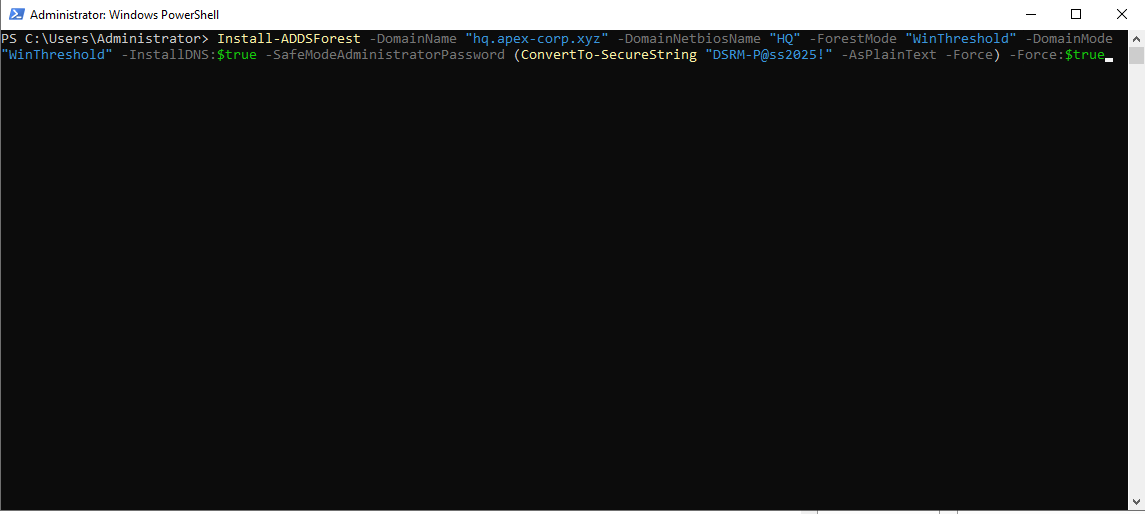

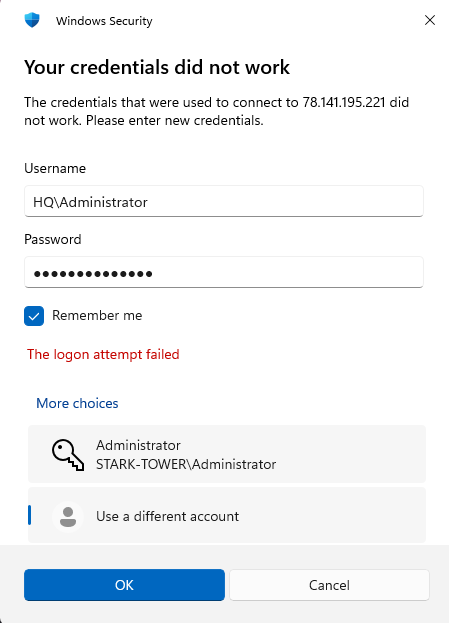
After reboot, logged back in via RDP using HQ\Administrator — note the domain prefix is needed now.
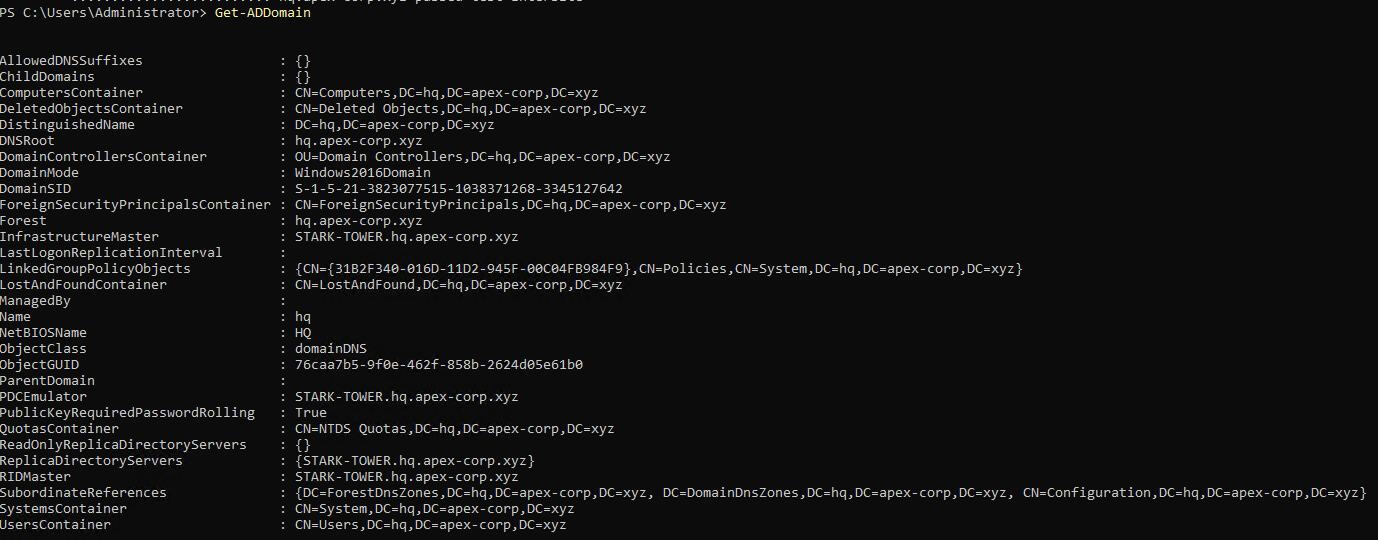
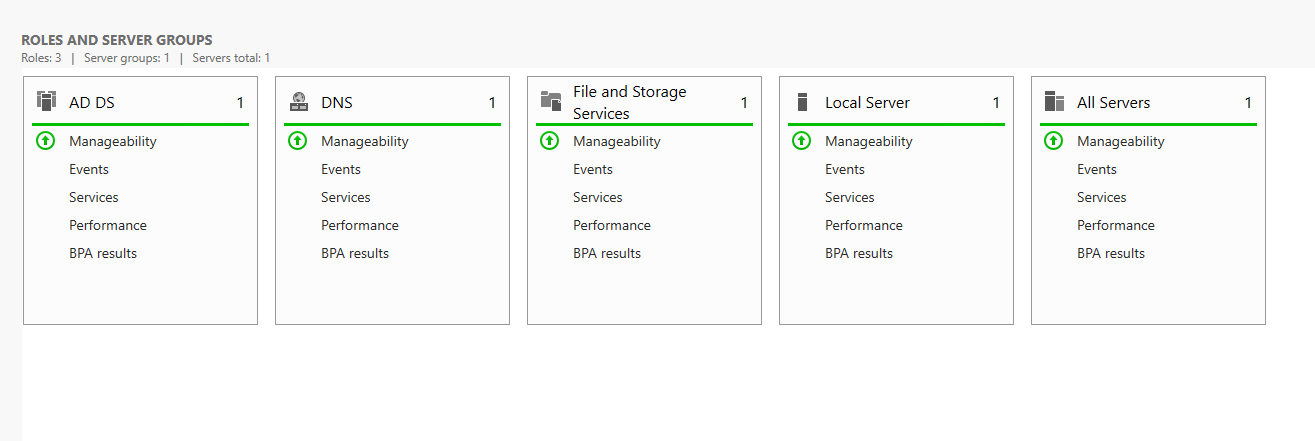
Ran Get-ADDomain to verify the domain was live:
PS> Get-ADDomain
Step 6 — Active Directory Certificate Services (AD CS)
AD CS gives the domain its own Certificate Authority. Certificates it issues are trusted automatically by all domain-joined machines. We also create a deliberately misconfigured certificate template to simulate the ESC1 vulnerability.
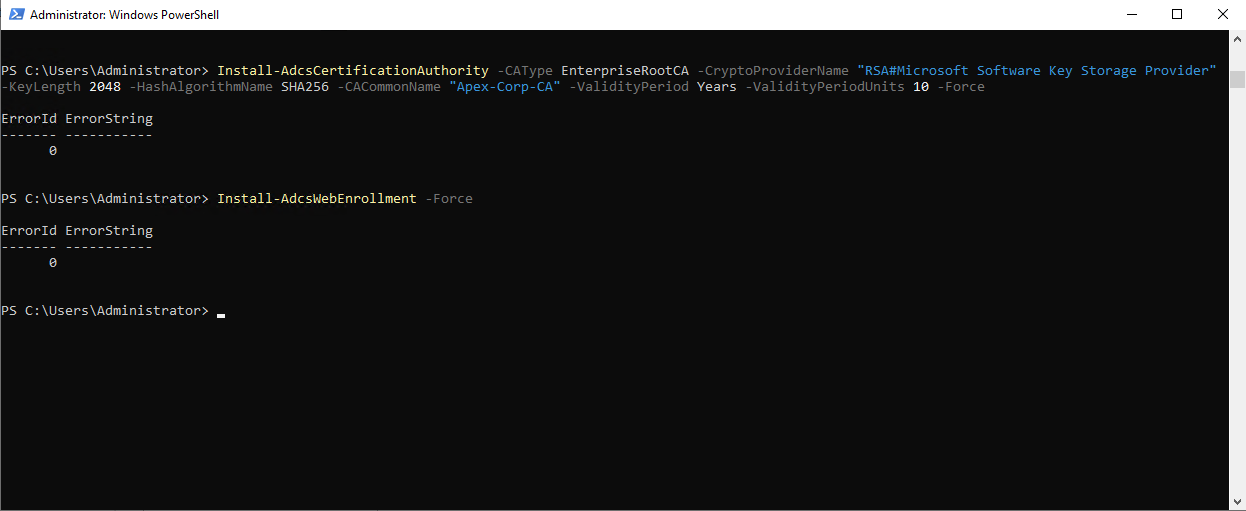
# Install the AD CS role and web enrollment
Install-WindowsFeature -Name AD-Certificate, ADCS-Cert-Authority, ADCS-Web-Enrollment, Web-Server -IncludeManagementTools

# Configure an Enterprise Root CA
Install-AdcsCertificationAuthority `
  -CAType EnterpriseRootCA `
  -CryptoProviderName "RSA#Microsoft Software Key Storage Provider" `
  -KeyLength 2048 `
  -HashAlgorithmName SHA256 `
  -CACommonName "Apex-Corp-CA" `
  -ValidityPeriod Years `
  -ValidityPeriodUnits 10 `
  -Force

# Install the web enrollment endpoint
Install-AdcsWebEnrollment -Force
Verified the CA was online with certutil -ping:
C:\> certutil -ping

Then created the vulnerable certificate template. In certsrv.msc:
- Open Certificate Templates Console from certsrv → right-click Certificate Templates → Manage
- Duplicate the built-in User template
- Name the new template
ApexVPN - In the Subject Name tab: select "Supply in the request"
- In the Security tab: give Domain Users the Enroll permission
- Back in certsrv → Certificate Templates → New → Certificate Template to Issue → select
ApexVPN
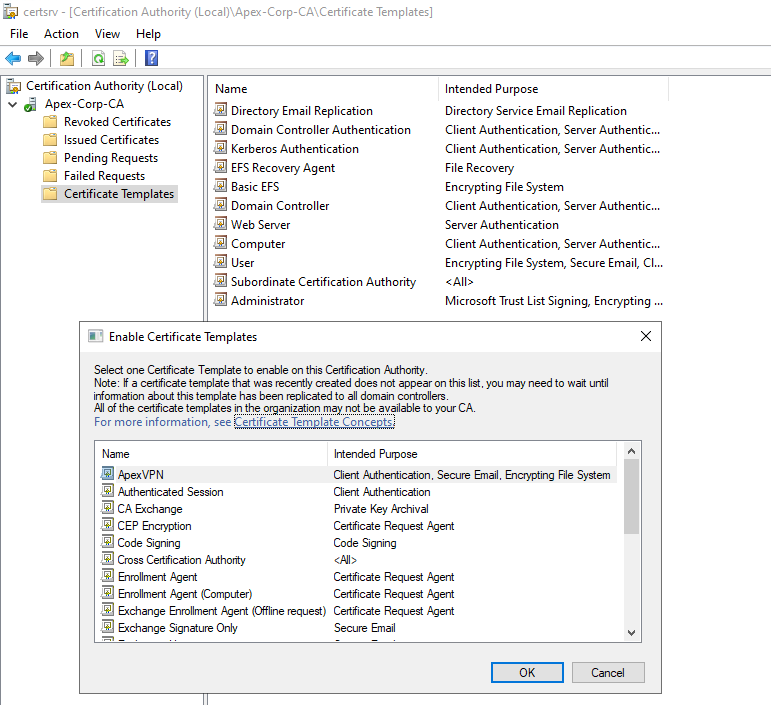
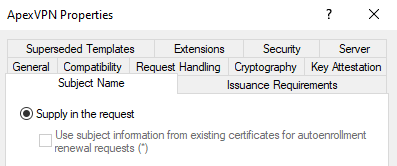
"Supply in the request" means any domain user can put any name they want in the Subject Alternative Name when requesting a certificate — including a Domain Admin's name. This is ESC1 from the Certified Pre-Owned research. With this, a low-privilege user can impersonate DA.
Step 7 — OUs, Groups, and Users
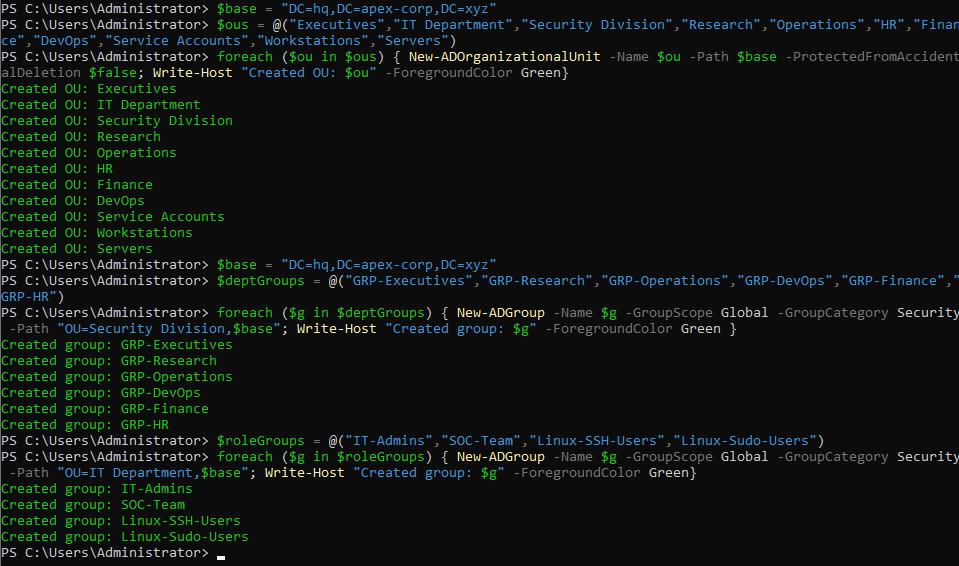
Created Organizational Units to give the domain a realistic company structure, then security groups, and finally around 50 named user accounts pulled from MCU, DCU, and The Boys characters.
$base = "DC=hq,DC=apex-corp,DC=xyz"

$ous = @("Executives","IT Department","Security Division","Research",
         "Operations","HR","Finance","DevOps","Service Accounts","Workstations","Servers")

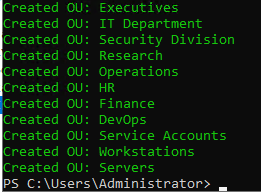
foreach ($ou in $ous) {
    New-ADOrganizationalUnit -Name $ou -Path $base
    Write-Host "Created OU: $ou" -ForegroundColor Green
}
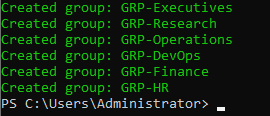
$base = "DC=hq,DC=apex-corp,DC=xyz"

"GRP-Executives","GRP-Research","GRP-Operations","GRP-DevOps","GRP-Finance","GRP-HR" | ForEach-Object {
    New-ADGroup -Name $_ -GroupScope Global -GroupCategory Security -Path "OU=Security Division,$base"
}

"IT-Admins","SOC-Team","Linux-SSH-Users","Linux-Sudo-Users" | ForEach-Object {
    New-ADGroup -Name $_ -GroupScope Global -GroupCategory Security -Path "OU=IT Department,$base"
}
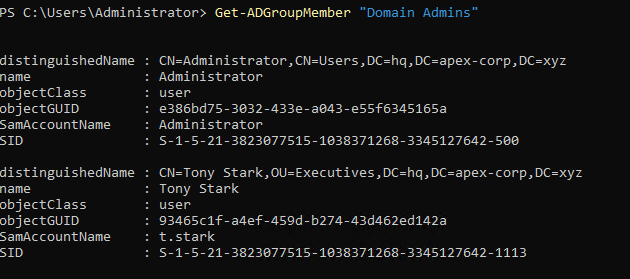
For users, created characters named after MCU, DCU, and The Boys to make the domain look like a real company. Tony Stark is the main Domain Admin account.
$base = "DC=hq,DC=apex-corp,DC=xyz"
$defaultPass = ConvertTo-SecureString "Apex@2025Secure!" -AsPlainText -Force

# Tony Stark — CTO, Domain Admin
New-ADUser -Name "Tony Stark" -SamAccountName "t.stark" `
  -UserPrincipalName "[email protected]" `
  -Title "CTO" -Department "Executive" `
  -Path "OU=Executives,$base" `
  -AccountPassword $defaultPass -Enabled $true -PasswordNeverExpires $true
Add-ADGroupMember -Identity "Domain Admins" -Members "t.stark"
Add-ADGroupMember -Identity "Enterprise Admins" -Members "t.stark"
Add-ADGroupMember -Identity "Schema Admins" -Members "t.stark"

# Homelander — intentional DA misconfiguration (attack path)
New-ADUser -Name "John Gillman" -SamAccountName "homelander" `
  -UserPrincipalName "[email protected]" `
  -Title "CEO" -Department "Executive" `
  -Path "OU=Executives,$base" `
  -AccountPassword $defaultPass -Enabled $true -PasswordNeverExpires $true
Add-ADGroupMember -Identity "Domain Admins" -Members "homelander"

# Hughie Campbell — standard user, active on FLATIRON workstation
New-ADUser -Name "Hughie Campbell" -SamAccountName "h.campbell" `
  -UserPrincipalName "[email protected]" `
  -Title "Field Operative" -Department "Operations" `
  -Path "OU=Operations,$base" `
  -AccountPassword $defaultPass -Enabled $true -PasswordNeverExpires $true
Add-ADGroupMember -Identity "GRP-Operations" -Members "h.campbell"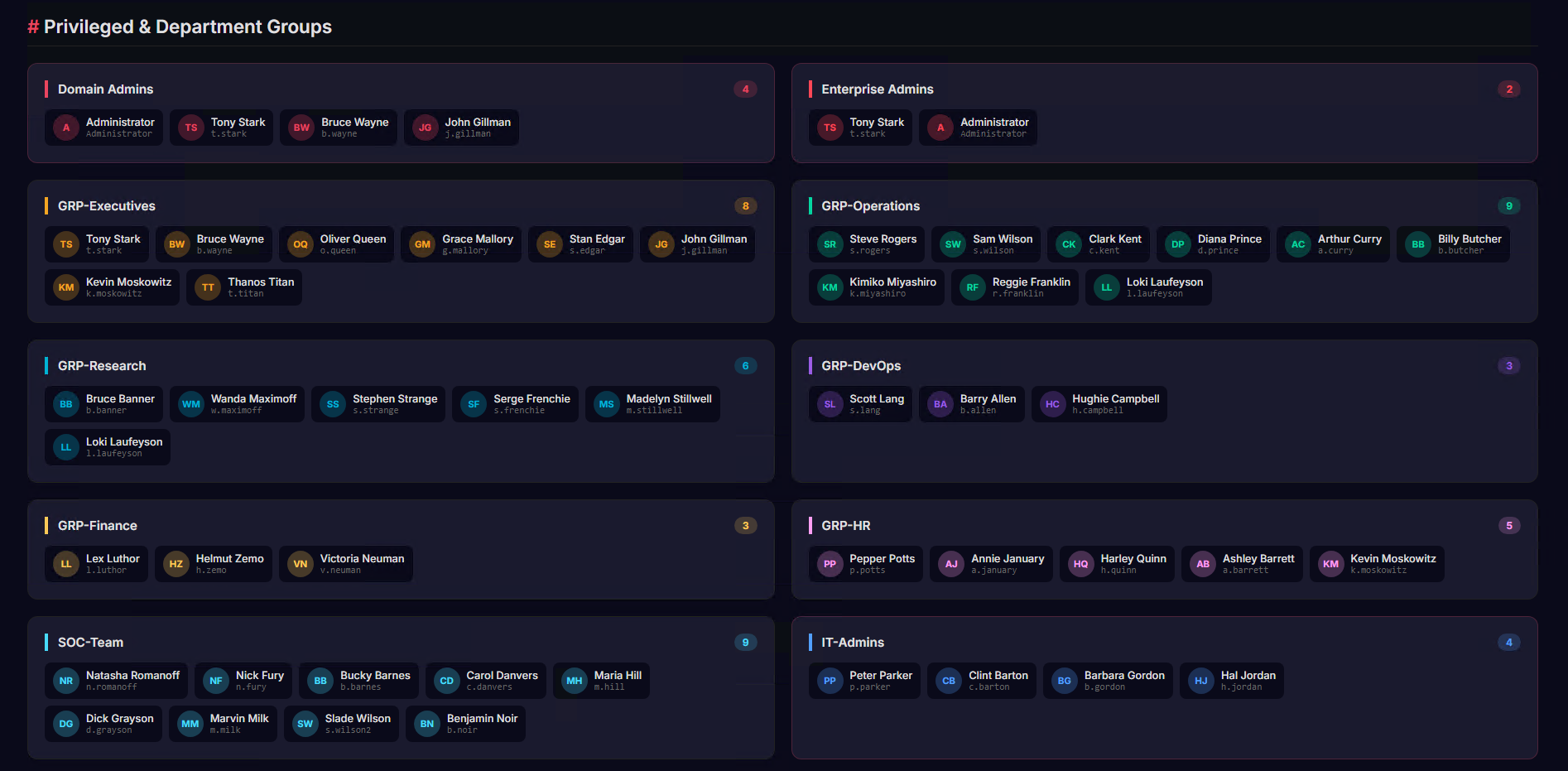
Verified which users were in the Domain Admins group:
Step 8 — Service Accounts
Created three service accounts with SPNs registered, making them Kerberoasting targets. These are the accounts an attacker can grab tickets for and crack offline.
$svcOU = "OU=Service Accounts,DC=hq,DC=apex-corp,DC=xyz"

# svc_alfred — Kerberoastable, has GenericAll on Domain Admins group
New-ADUser -Name "svc_alfred" -SamAccountName "svc_alfred" `
  -Description "Backup Service Account" -Path $svcOU `
  -AccountPassword (ConvertTo-SecureString "Alfred#Butler1" -AsPlainText -Force) `
  -Enabled $true -PasswordNeverExpires $true
Set-ADUser -Identity "svc_alfred" -ServicePrincipalNames @{Add="MSSQLSvc/vought-hq.branch.hq.apex-corp.xyz:1433"}

# svc_jarvis — Kerberoastable, credentials planted in Jenkins workspace
New-ADUser -Name "svc_jarvis" -SamAccountName "svc_jarvis" `
  -Description "Web & Database Service" -Path $svcOU `
  -AccountPassword (ConvertTo-SecureString "J@rv1s2025!" -AsPlainText -Force) `
  -Enabled $true -PasswordNeverExpires $true
Set-ADUser -Identity "svc_jarvis" -ServicePrincipalNames @{Add="HTTP/vought-hq.branch.hq.apex-corp.xyz"}

# svc_friday — Kerberoastable, credentials in Jenkins .env file
New-ADUser -Name "svc_friday" -SamAccountName "svc_friday" `
  -Description "Linux Nginx Service Account" -Path $svcOU `
  -AccountPassword (ConvertTo-SecureString "Fr1d@yAI2025" -AsPlainText -Force) `
  -Enabled $true -PasswordNeverExpires $true
Set-ADUser -Identity "svc_friday" -ServicePrincipalNames @{Add="HTTP/batcave.hq.apex-corp.xyz"}
Verify which accounts have SPNs (Kerberoastable):
PS> Get-ADUser -Filter {ServicePrincipalName -ne "$null"} -Properties ServicePrincipalName | Select-Object Name, SamAccountName, ServicePrincipalName
Step 9 — SMB Shares
Created shared folders with dummy sensitive files inside — board meeting notes, VPN configs with passwords, merger documents. The goal is to make shares look like a real company when an attacker lands on the network and starts browsing.
# Create directories
"Executive","Operations","IT","HR" | ForEach-Object {
    New-Item -Path "C:\Shares\$_" -ItemType Directory -Force
}

# Create shares with appropriate permissions
New-SmbShare -Name "Executive$" -Path "C:\Shares\Executive" `
  -FullAccess "HQ\GRP-Executives" -NoAccess "Everyone"

New-SmbShare -Name "Operations" -Path "C:\Shares\Operations" `
  -FullAccess "HQ\GRP-Operations"

New-SmbShare -Name "IT-Tools" -Path "C:\Shares\IT" `
  -FullAccess "HQ\IT-Admins"

New-SmbShare -Name "HR-Records" -Path "C:\Shares\HR" `
  -FullAccess "HQ\GRP-HR" -NoAccess "Everyone"

# List to confirm
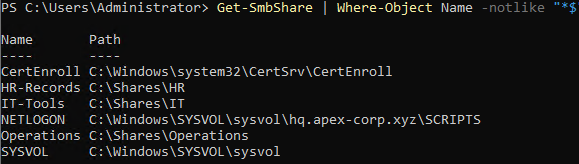
Get-SmbShare | Where-Object Name -notlike "*$" | Format-Table Name, Path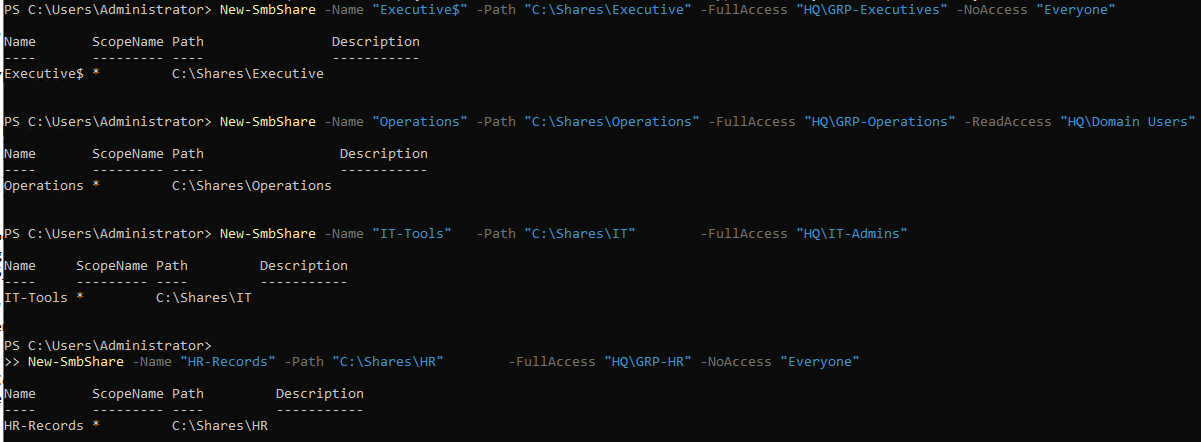
Step 10 — Group Policy
Created two GPOs — one for password policy and one to enable audit logging for logon events.
# Password policy linked at domain root
New-GPO -Name "APEX-SEC-PasswordPolicy" | New-GPLink -Target "DC=hq,DC=apex-corp,DC=xyz"
Set-ADDefaultDomainPasswordPolicy -Identity "hq.apex-corp.xyz" `
  -MinPasswordLength 8 `
  -ComplexityEnabled $true `
  -LockoutThreshold 5 `
  -LockoutDuration "00:30:00"

# Audit GPO for logon event tracking
New-GPO -Name "ApexSecAuditPolicy" | New-GPLink -Target "DC=hq,DC=apex-corp,DC=xyz"
The audit policy was configured inside Group Policy Management Editor under: Computer Configuration → Windows Settings → Security Settings → Advanced Audit Policy Configuration → Account Logon. Enabled success and failure logging for Kerberos authentication events.
Step 11 — Kerberoastable and AS-REPRoastable Accounts
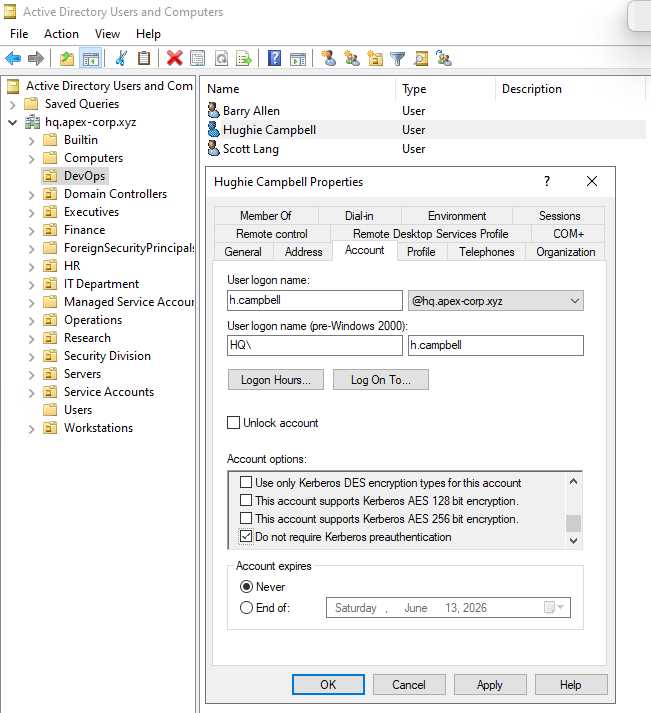
Some user accounts were configured with "Do not require Kerberos preauthentication" checked. This means an attacker can request a Kerberos AS-REP hash for these accounts without knowing the password — then crack it offline. That is AS-REPRoasting.
PS> Set-ADAccountControl -Identity "some.user" -DoesNotRequirePreAuth $true

PS> # Check which accounts are AS-REPRoastable
PS> Get-ADUser -Filter {DoesNotRequirePreAuth -eq $true} -Properties DoesNotRequirePreAuth | Select-Object Name, SamAccountName

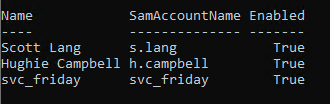
---- --------------
svc_alfred svc_alfred
svc_jarvis svc_jarvis
svc_friday svc_friday
----
Administrator
Tony Stark
homelander
Step 12 — Second Domain-Joined Machine
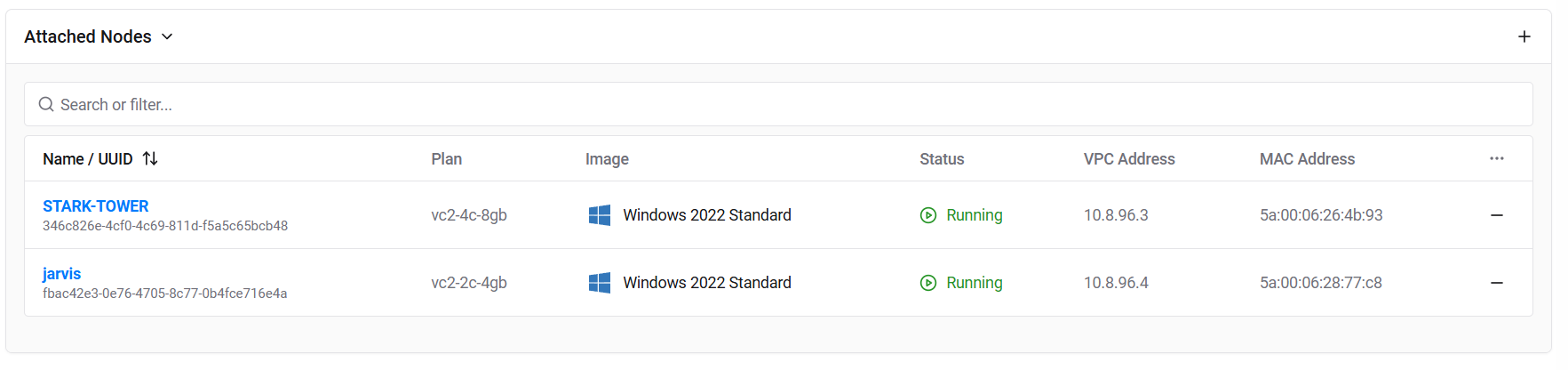
Deployed a second VPS on the same Vultr private network to act as a domain workstation. This is FLATIRON — it runs Windows 10, is domain joined, and has a logged-in session as Hughie Campbell.
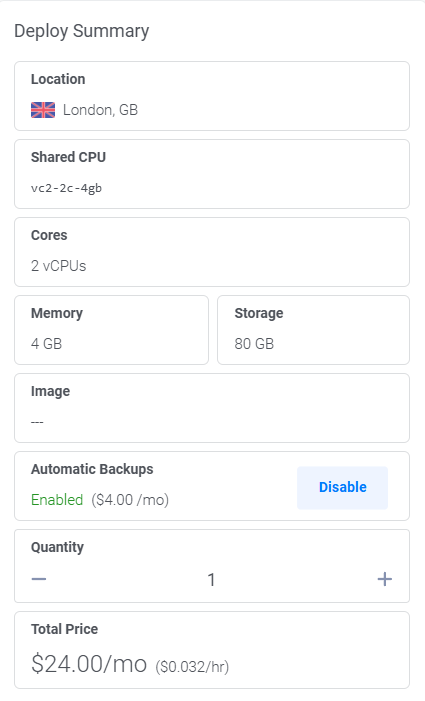
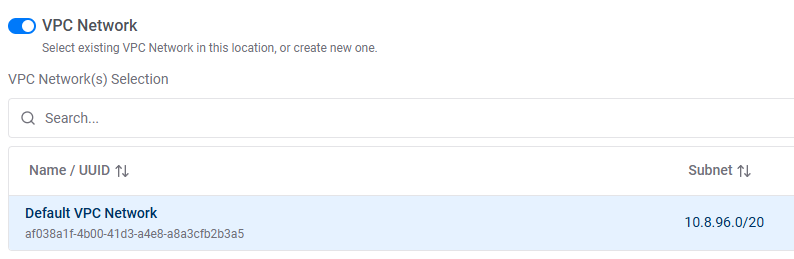
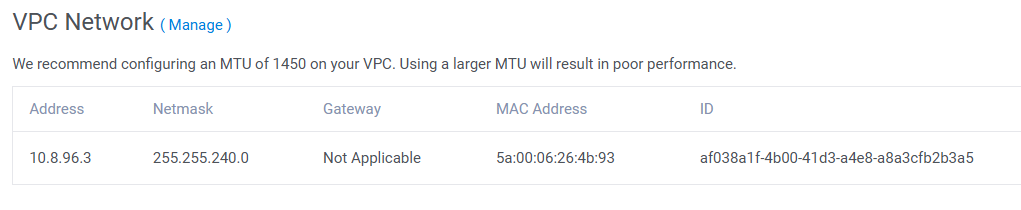
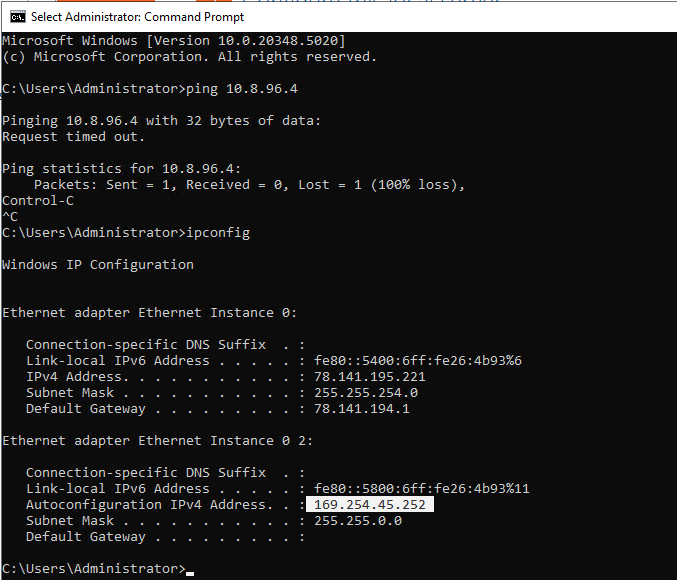
When the machine first booted, pinging the DC failed. The new machine had a link-local address (169.254.x.x) instead of a proper private IP — the network adapter was not configured correctly yet.
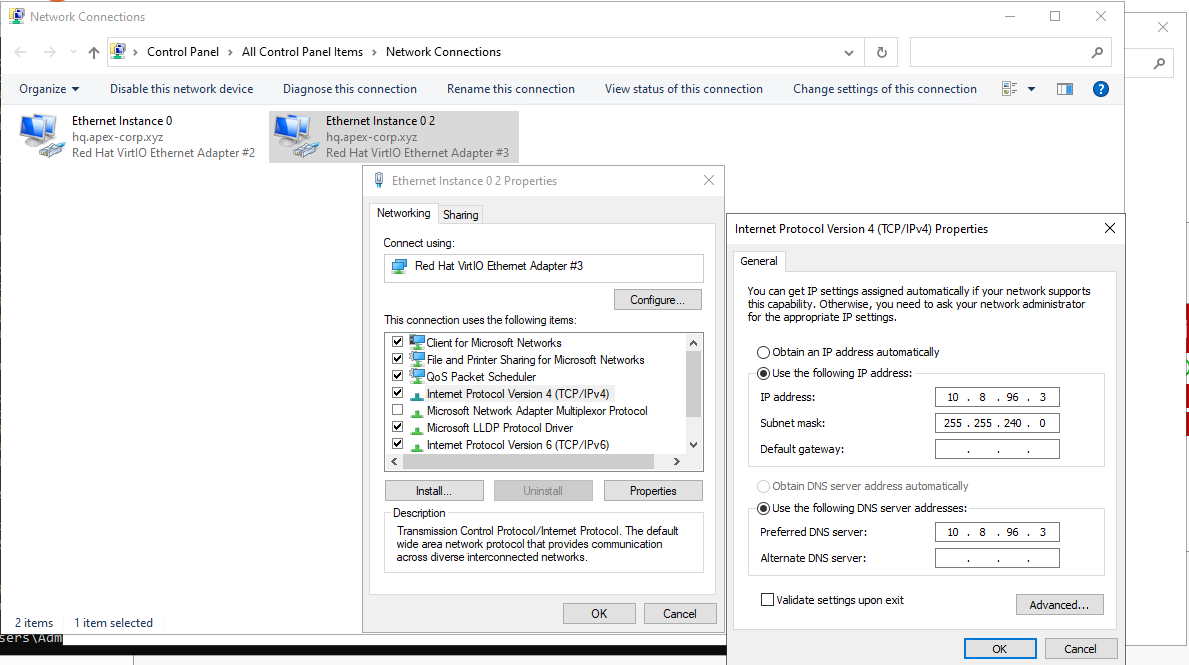
Fixed by going into Control Panel → Network Connections → IPv4 Properties and manually setting the IP to match the Vultr VPC subnet, with DNS pointed at the DC's private IP.
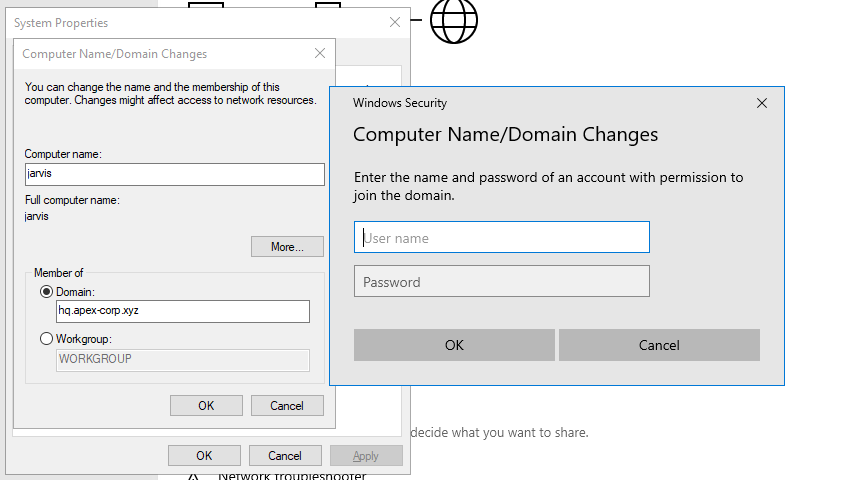
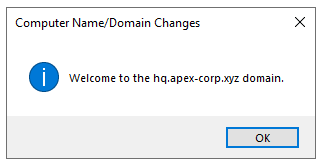
Then joined the domain from Settings → System → About → Domain or workgroup.
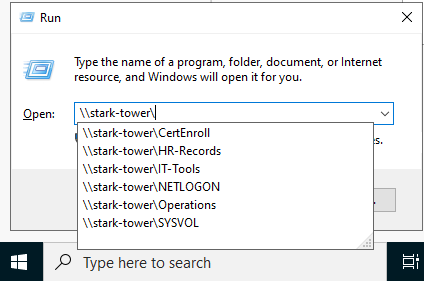
Verified SMB shares were accessible from the new machine by typing \\STARK-TOWER\ in the Run dialog:
Logged into the workstation as Hughie Campbell (h.campbell) to make it look like a real employee's machine:
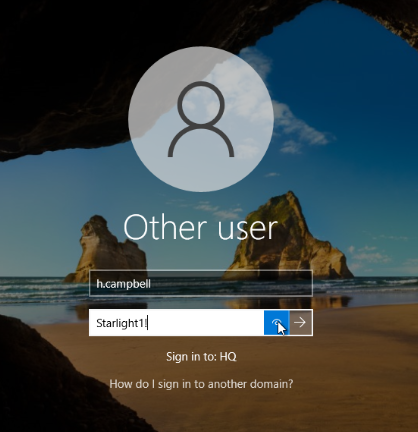
Also added a wallpaper from The Boys to make the workstation feel realistic.

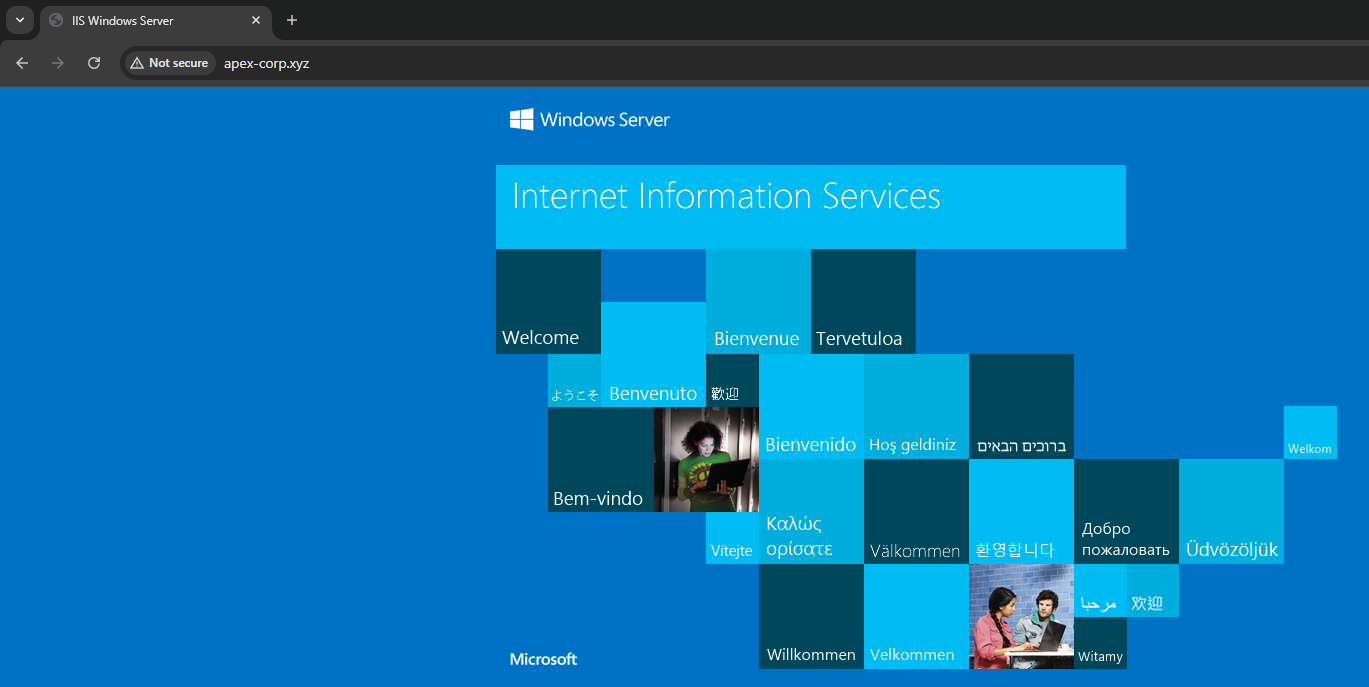
Finally confirmed the public domain was pointing to the Vultr IP via Cloudflare. Visiting the domain in a browser hit the IIS default page from the DC — quick visual confirmation the DNS is wired up correctly.
Domain hq.apex-corp.xyz running on STARK-TOWER (Vultr, Windows Server 2022). Full AD structure with OUs, groups, ~50 named users. AD CS with the ESC1 vulnerable template. SMB shares with dummy sensitive files. Kerberoastable and AS-REPRoastable accounts configured. A domain-joined workstation (FLATIRON) with an active Hughie Campbell session.
Setup Checklist
- Domain
apex-corp.xyzpurchased and Cloudflare nameservers configured - Vultr VPS deployed with Windows Server 2022 (DC01 — STARK-TOWER)
- AD DS role installed and forest
hq.apex-corp.xyzpromoted - AD CS configured with ESC1-vulnerable certificate template
- OUs, groups, and ~50 named lab users created
- Kerberoastable and AS-REPRoastable service accounts configured
- SMB shares with sensitive dummy files deployed
- Domain-joined workstation (FLATIRON) with active user session