Why WireGuard
Vultr, Oracle Cloud, and AWS are completely separate networks. By default they cannot reach each other at all. Active Directory relies on constant communication — LDAP, Kerberos, DNS, replication — between all machines. Without a VPN, a machine on Oracle Cloud has no way to contact the Domain Controller on Vultr.
WireGuard creates an encrypted Layer 3 tunnel. Each machine gets a private IP in the 10.10.0.0/24 range. DC01 at 10.10.0.1 is the hub — every other machine connects to it as a peer. The hub routes traffic between all peers.
10.10.0.1
WireGuard Hub
Vultr"] P2["VOUGHT-HQ
10.10.0.2
Oracle Cloud"] P3["BATCAVE
10.10.0.3
Oracle Cloud"] P4["FLATIRON
10.10.0.4
Vultr"] P5["WATCHTOWER
10.10.0.5
AWS EC2"] HUB <-->|"UDP 51820"| P2 HUB <-->|"UDP 51820"| P3 HUB <-->|"UDP 51820"| P4 HUB <-->|"UDP 51820"| P5 style HUB fill:#1a3a1a,stroke:#a4ff91,color:#fff
Step 1 — Install WireGuard on DC01 (Windows)
Downloaded and installed WireGuard on the Windows Server from PowerShell:
PS> Invoke-WebRequest -Uri "https://download.wireguard.com/windows-client/wireguard-installer.exe" -OutFile "C:\wireguard-installer.exe"
PS> Start-Process "C:\wireguard-installer.exe" -Wait
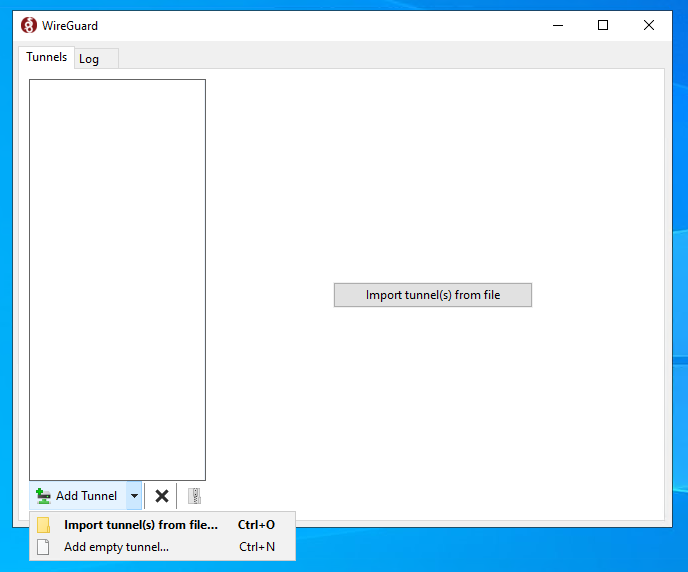
After installation, opened the WireGuard GUI. The first step is creating a new tunnel from the dropdown.
Step 2 — Key Generation
WireGuard uses public/private key pairs. Each machine generates its own pair. On Windows, the GUI generates keys automatically when you create a new tunnel. On Linux, you generate them manually.
The keys used for DC01 in this lab:
PublicKey  = /qe58vBz5fDxhCmq9OQ3Nc+CjVHWluCsD7IQfb+UsAc=
# PrivateKey stays on the server — never share itOn Linux machines, generate keys with: wg genkey | sudo tee /etc/wireguard/private.key | wg pubkey | sudo tee /etc/wireguard/public.key — then copy the public key and add it as a peer on DC01.
Step 3 — Create the Hub Tunnel on DC01
In WireGuard on DC01, clicked "Add Tunnel" → "Create New Tunnel". The interface section was filled in like this:
[Interface]
PrivateKey = <DC01-PRIVATE-KEY>
Address = 10.10.0.1/24
ListenPort = 51820
DNS = 127.0.0.1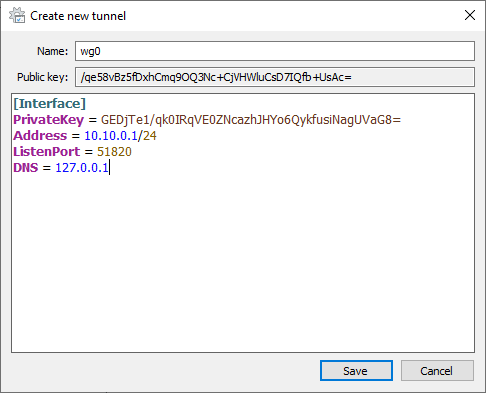
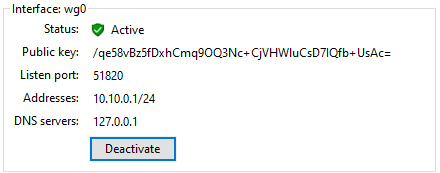
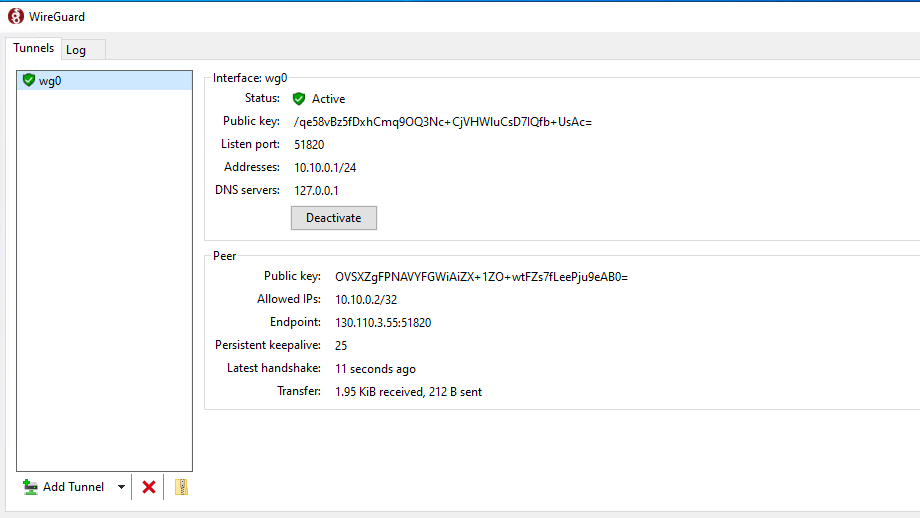
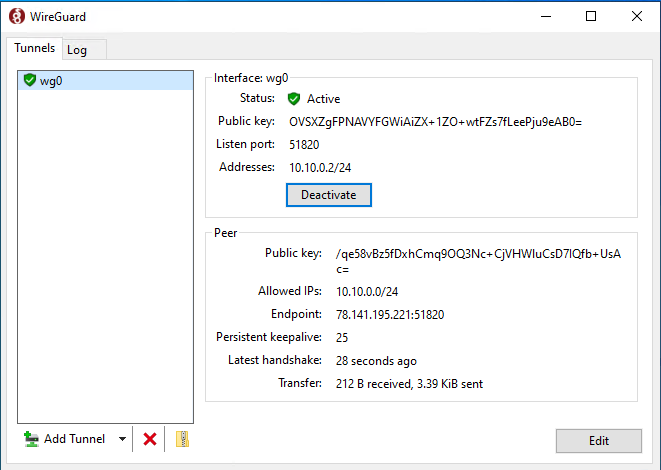
After saving and activating, the tunnel shows as active with the public key, listener port, and address.
Step 4 — Verify the Interface on Windows
Ran ipconfig to confirm the WireGuard virtual adapter appeared with the right IP:
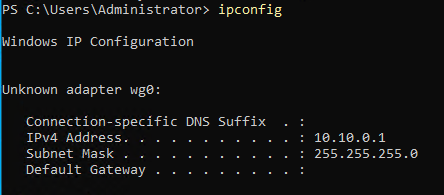
PS> Get-NetAdapter | Format-Table Name, Status, InterfaceDescription

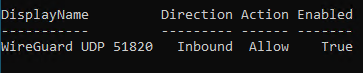
Also confirmed the Windows Firewall had the WireGuard inbound rule enabled:
Step 5 — Oracle Machine Peer Config
For the Oracle Windows machine (VOUGHT-HQ), a tunnel was created pointing back at DC01. The Oracle machine gets WireGuard IP 10.10.0.2.
[Interface]
PrivateKey = <ORACLE-MACHINE-PRIVATE-KEY>
Address = 10.10.0.2/24
ListenPort = 51820

[Peer]
PublicKey = /qe58vBz5fDxhCmq9OQ3Nc+CjVHWluCsD7IQfb+UsAc=
AllowedIPs = 10.10.0.0/24
Endpoint = <DC01-VULTR-PUBLIC-IP>:51820
PersistentKeepalive = 25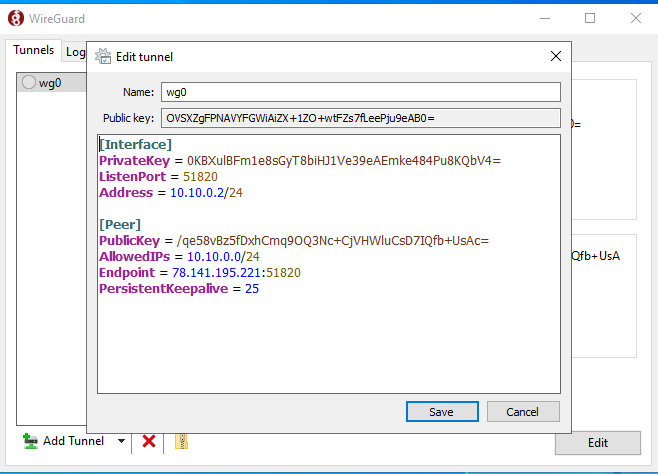
Both machines' WireGuard GUIs side by side — machine 1 at 10.10.0.1 and machine 2 at 10.10.0.2:
Step 6 — Add Oracle Machine as Peer on DC01
Back on DC01, edited the existing tunnel and added the Oracle machine as a peer. Each new machine you add gets its own [Peer] block:
[Peer]
PublicKey = OVSXZgFPNAVYFGWiAiZX+1ZO+wtFZs7fLeePju9eAB0=
AllowedIPs = 10.10.0.2/32
Endpoint = <ORACLE-PUBLIC-IP>:51820
PersistentKeepalive = 25

# Add one [Peer] block per machine:
# 10.10.0.3/32 = BATCAVE (Oracle Linux)
# 10.10.0.5/32 = WATCHTOWER (AWS Jenkins)
Step 7 — Verify the Tunnel is Working
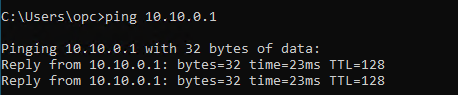
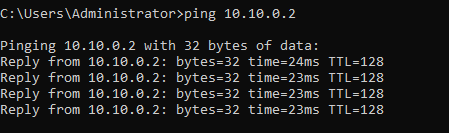
Pinged from DC01 to the Oracle machine and back. Both should reply through the tunnel.
Step 8 — DNS Configuration for Active Directory
WireGuard only creates a routed tunnel — it does not handle DNS. Every machine that needs to contact AD must use the DC's WireGuard IP (10.10.0.1) as its primary DNS server. Without this, the machine cannot resolve hq.apex-corp.xyz and domain join will fail.
# Point DNS at DC01 via WireGuard IP
$adapter = Get-NetAdapter | Where-Object {$_.Status -eq "Up"} | Select-Object -First 1
Set-DnsClientServerAddress -InterfaceIndex $adapter.ifIndex `
  -ServerAddresses "10.10.0.1","8.8.8.8"

# Verify it resolves AD names
nslookup stark-tower.hq.apex-corp.xyz
# Create /etc/netplan/99-custom-dns.yaml
network:
version: 2
ethernets:
enp39s0: # replace with your interface name (ip link show)
nameservers:
addresses: [10.10.0.1, 8.8.8.8]
search: [hq.apex-corp.xyz]
dhcp4-overrides:
use-dns: false
use-domains: false
# Apply
sudo chmod 600 /etc/netplan/99-custom-dns.yaml
sudo netplan try# /etc/krb5.conf — required for Linux AD domain join
[libdefaults]
default_realm = HQ.APEX-CORP.XYZ
rdns = false # ← without this, domain join fails silently
[realms]
HQ.APEX-CORP.XYZ = {
kdc = stark-tower.hq.apex-corp.xyz
admin_server = stark-tower.hq.apex-corp.xyz
}
[domain_realm]
.hq.apex-corp.xyz = HQ.APEX-CORP.XYZ
hq.apex-corp.xyz = HQ.APEX-CORP.XYZFull Tunnel Map
| Machine | WireGuard IP | Cloud | Role |
|---|---|---|---|
STARK-TOWER (DC01) | 10.10.0.1 | Vultr | Hub — all peers connect here |
VOUGHT-HQ (DC02) | 10.10.0.2 | Oracle Cloud | Child DC peer |
BATCAVE (LINUX01) | 10.10.0.3 | Oracle Cloud | AD-joined Linux peer |
FLATIRON (WS01) | 10.10.0.4 | Vultr | Workstation peer |
WATCHTOWER (LINUX02) | 10.10.0.5 | AWS EC2 | Jenkins server peer |
64 bytes from 10.10.0.2: icmp_seq=1 ttl=128 time=17.8 ms ← VOUGHT Oracle
64 bytes from 10.10.0.5: icmp_seq=1 ttl=64 time=48.3 ms ← WATCHTOWER AWS
Address: 10.10.0.1#53
Name: stark-tower.hq.apex-corp.xyz
Address: 10.10.0.1
Mesh Verification Checklist
- DC01 (STARK-TOWER) — hub configured with all peer public keys
- VOUGHT-HQ (Oracle) — connects to hub, reachable at 10.10.0.2
- BATCAVE (Oracle Linux) — connects to hub, reachable at 10.10.0.3
- FLATIRON (Vultr) — connects to hub, reachable at 10.10.0.4
- WATCHTOWER (AWS) — connects to hub, reachable at 10.10.0.5
- DNS configured — all peers use 10.10.0.1 for AD name resolution
- PersistentKeepalive = 25 set on all peers behind NAT