hq.apex-corp.xyz"] -->|"Microsoft Entra Connect
Password Hash Sync (PHS)"| ENTRA["☁️ Microsoft Entra ID
apex-corp.xyz Tenant"] ENTRA -->|"OAuth 2.0 / OpenID Connect
user login & token validation"| PORTAL["🌐 APEX-PORTAL
portal.apex-corp.xyz
Flask + Caddy"] style AD fill:#1a3a1a,stroke:#a4ff91,color:#fff style ENTRA fill:#1a1a3a,stroke:#9988ff,color:#fff style PORTAL fill:#1a2a3a,stroke:#6bb5ff,color:#fff
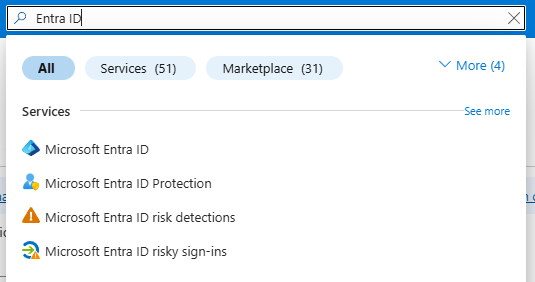
Step 1 — Find Entra ID in Azure Portal
Logged into portal.azure.com and searched for "Microsoft Entra ID" in the top search bar.
Step 2 — Add Custom Domain
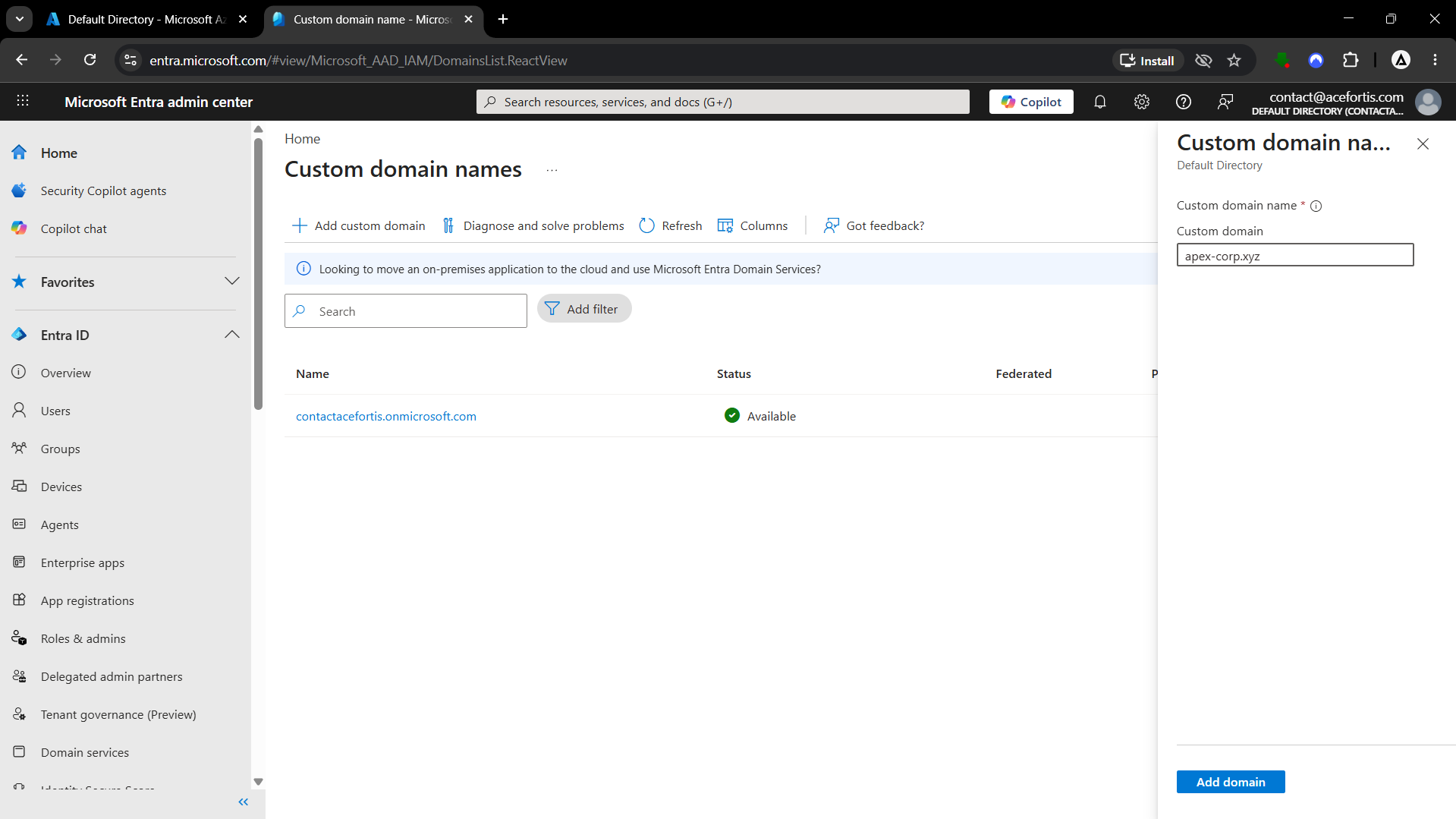
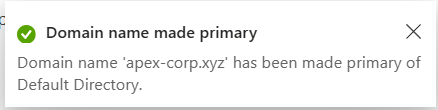
Inside the Entra Admin Center, went to Custom Domain Names → Add custom domain → typed apex-corp.xyz. Azure generated a TXT verification record. Added that TXT record in Cloudflare DNS, waited a few minutes, then clicked Verify in Azure. After verification, set apex-corp.xyz as the primary domain for the directory.
Step 3 — Download Microsoft Entra Connect
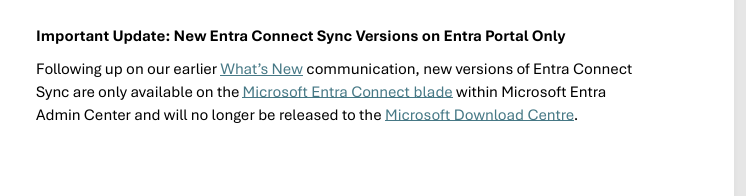
The installer is no longer available at the old Microsoft download links. Microsoft moved the download inside the Entra ID portal itself.
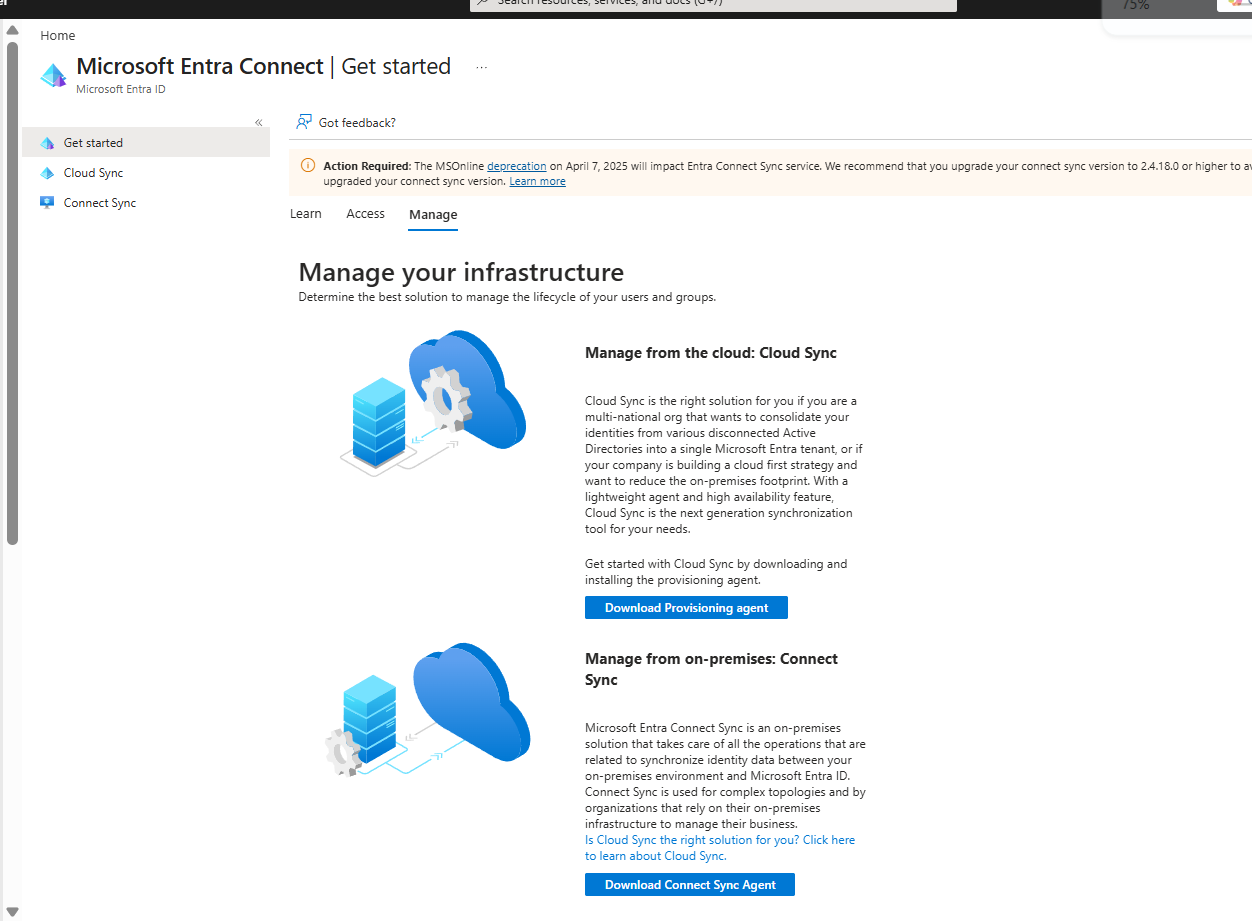
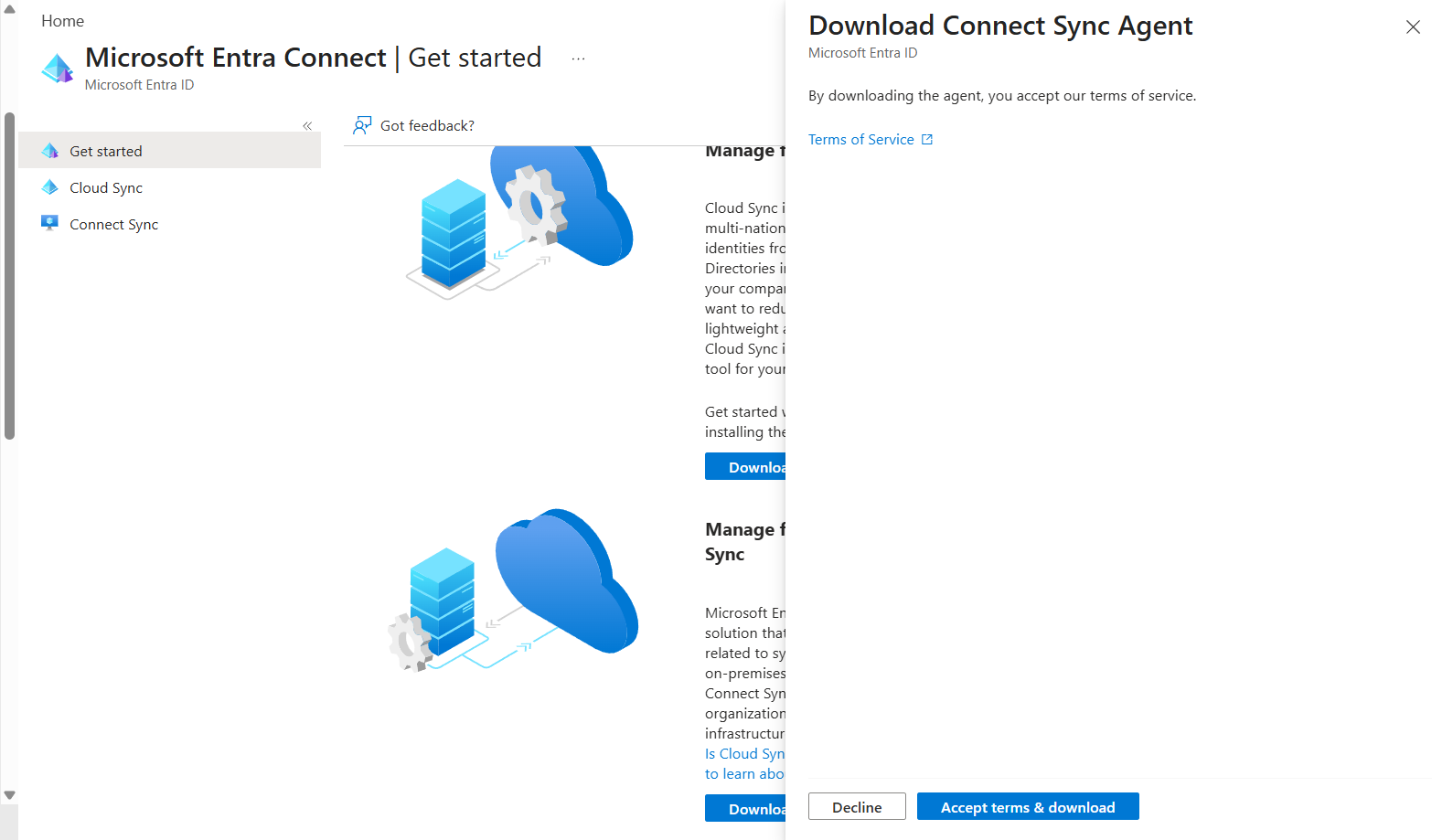
Searching for "Azure AD Connect download" on Google mostly shows the old Microsoft download page which is outdated. The new installer is only available from: Azure Portal → Microsoft Entra ID → Manage → Microsoft Entra Connect → Download Connect Sync agent. You have to accept license terms inside the portal before the download button appears.
Step 4 — Install on DC01 (STARK-TOWER)
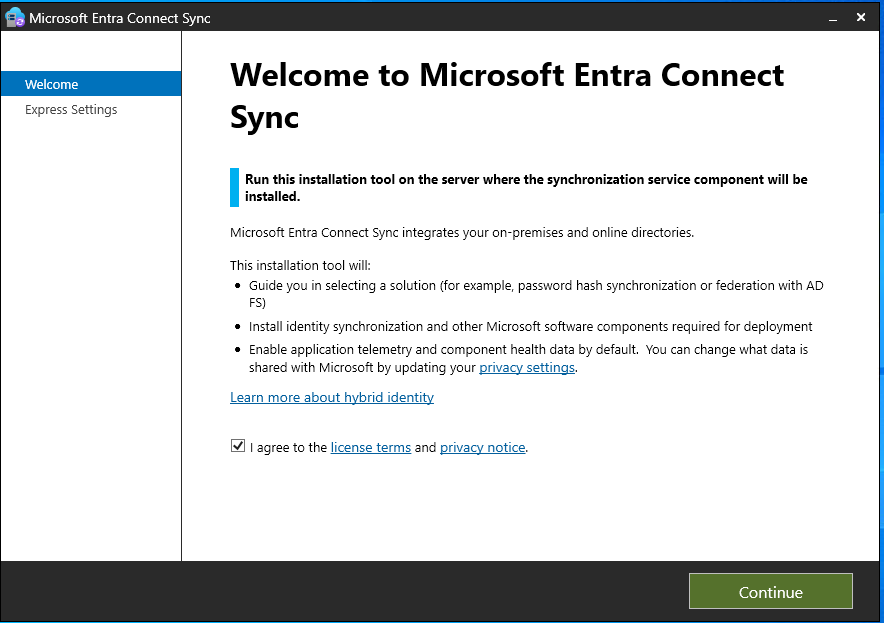
Copied the installer to DC01 and ran it as Administrator. The welcome screen appeared — clicked agree and continue.
Step 5 — The UPN Suffix Problem
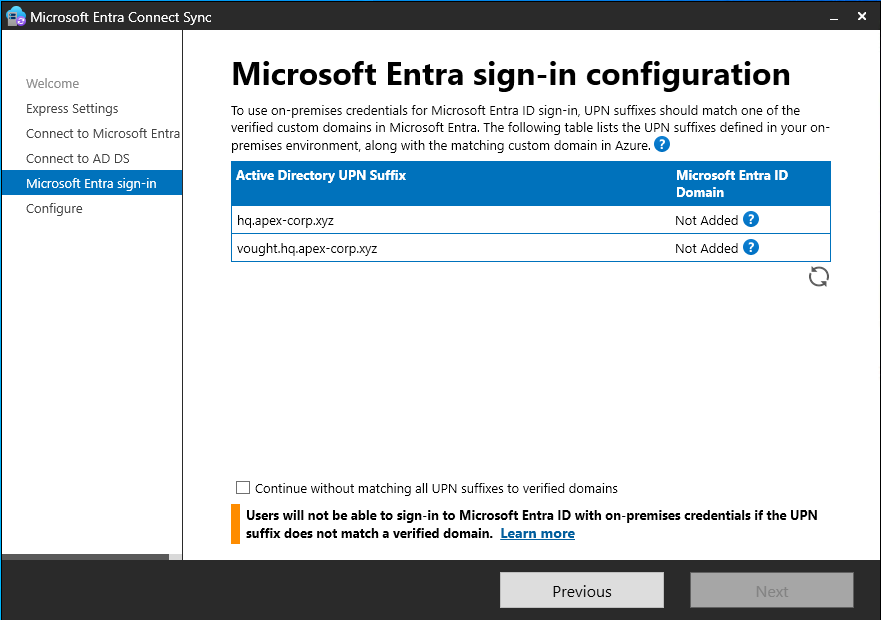
During Entra Connect setup, the sign-in configuration screen flagged a UPN suffix mismatch. The issue:
- Local AD users have UPNs like
[email protected]or[email protected] - Azure only has
apex-corp.xyzverified as a custom domain - Azure does not recognize
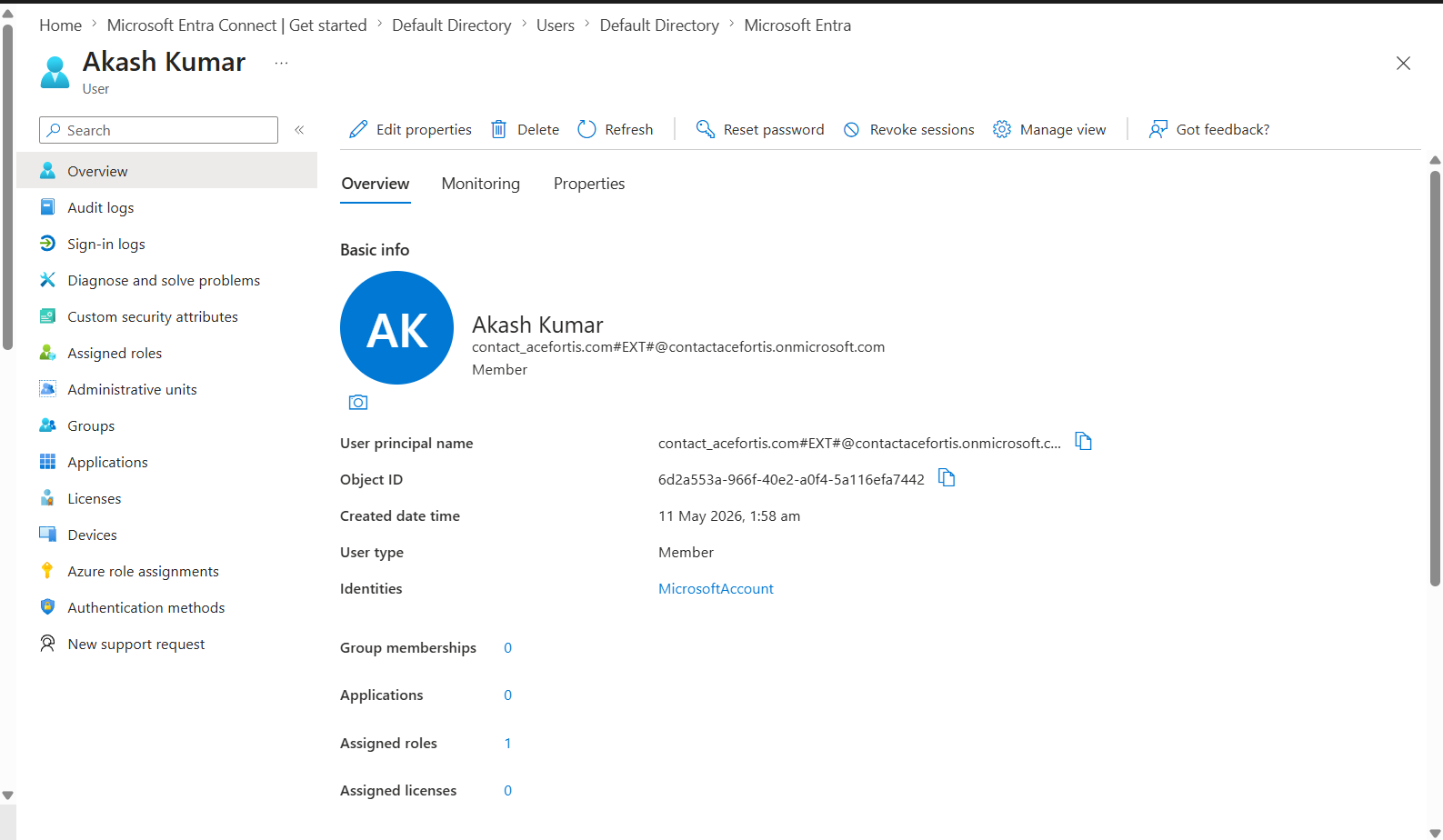
@hq.apex-corp.xyzor@vought.hq.apex-corp.xyzas valid cloud domains - Synced users fall back to getting a
.onmicrosoft.comaddress instead
Step 6 — Fix: Add Alternative UPN Suffix
Two steps. First add the cloud domain as an Alternative UPN Suffix in local AD, then update every user's UPN to use it.
Step 6a — Add Alternative UPN Suffix in Local AD:
- On DC01, open Active Directory Domains and Trusts from Server Manager Tools
- Right-click the top node (Active Directory Domains and Trusts) → Properties
- In the "Alternative UPN Suffixes" box, type
apex-corp.xyz - Click Add → OK
Step 6b — Bulk update all user UPNs via PowerShell:
# Update every user in the domain to use the cloud domain UPN suffix
Get-ADUser -Filter * | ForEach-Object {
    $newUpn = $_.SamAccountName + "@apex-corp.xyz"
    Set-ADUser -Identity $_.SamAccountName -UserPrincipalName $newUpn
    Write-Host "Updated: $($_.SamAccountName) → $newUpn" -ForegroundColor Green
}

# Force immediate sync instead of waiting for the 30-minute schedule
Start-ADSyncSyncCycle -PolicyType Delta- Open Active Directory Users and Computers
- Right-click a user → Properties → Account tab
- In the User UPN Logon dropdown, select
@apex-corp.xyz - Click OK — repeat for each user or run the PowerShell script instead
Step 7 — Create the Star Lord Admin Account
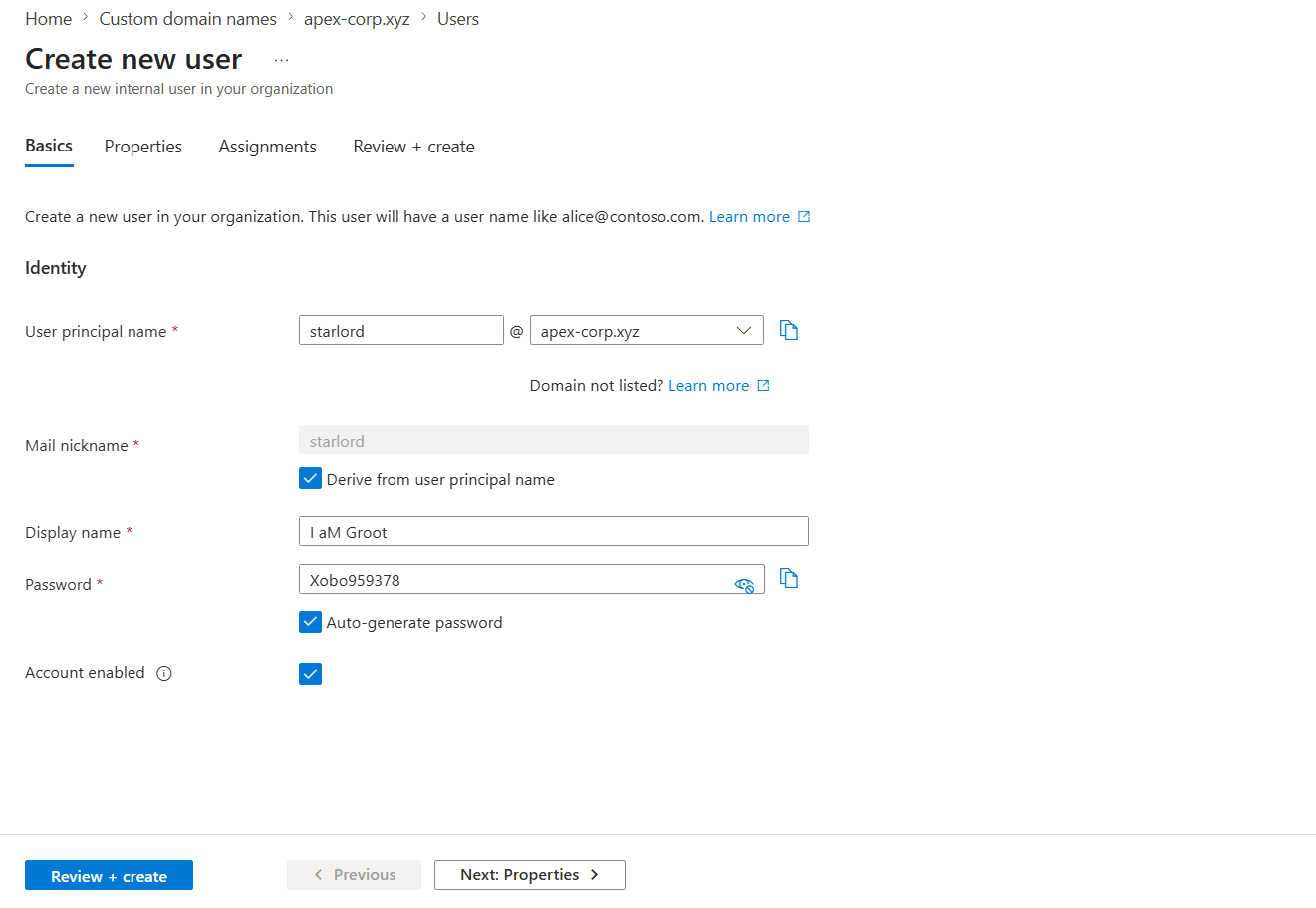
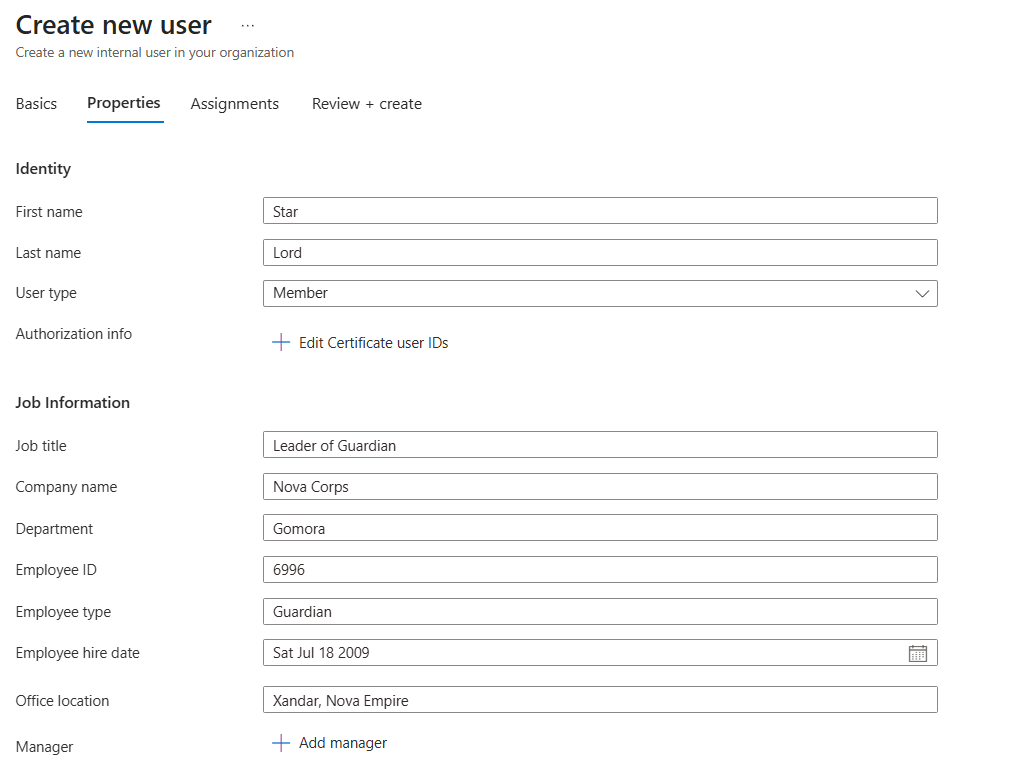
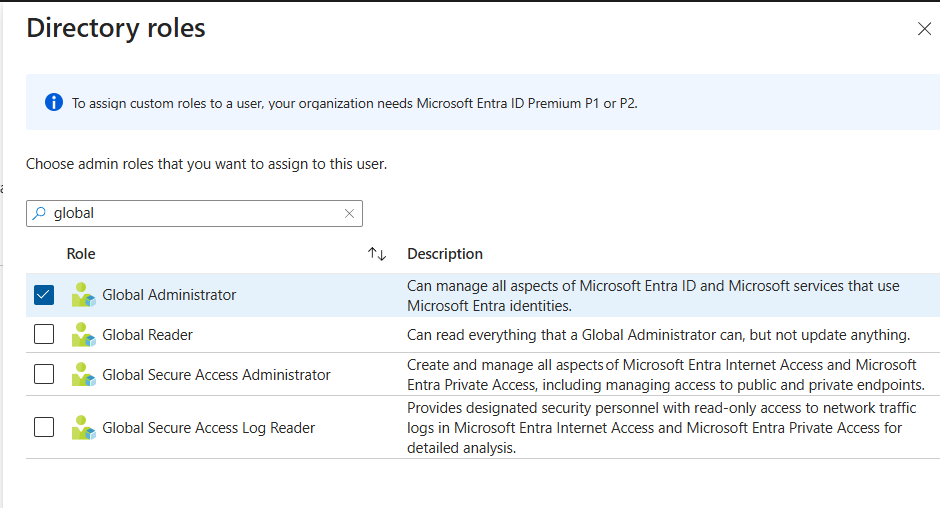
Created a cloud-only Global Admin account directly in Entra ID to use as the sync service account. Used Star Lord from Guardians of the Galaxy. This is the recommended practice — use a dedicated cloud account for syncing, not a personal one.
Gave Star Lord the Global Administrator role:
Step 8 — Connect Vultr AD to Entra ID
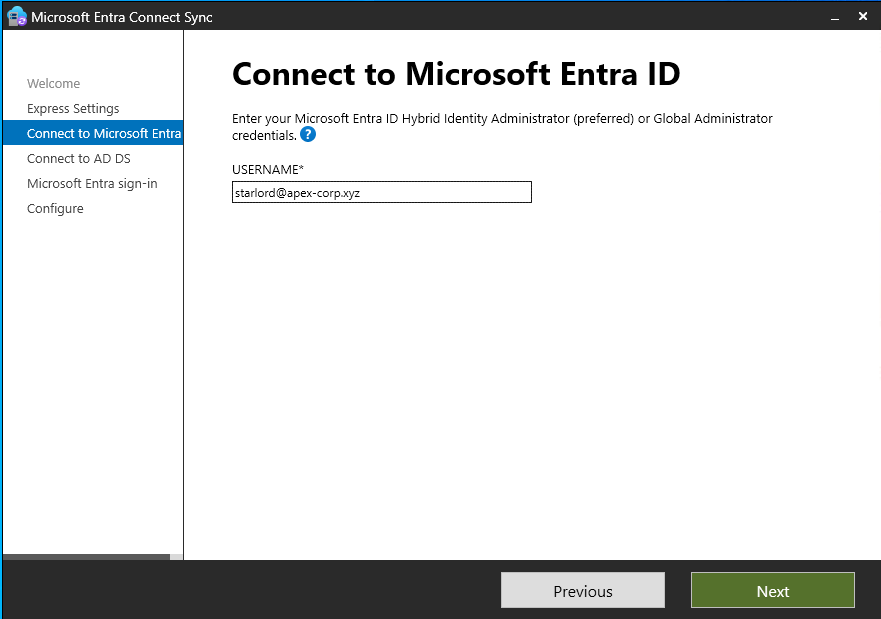
Ran the Entra Connect installer on DC01. Entered credentials on both screens:
- Microsoft Entra credentials: Star Lord's Global Administrator account
- Domain Admin credentials: HQ\t.stark
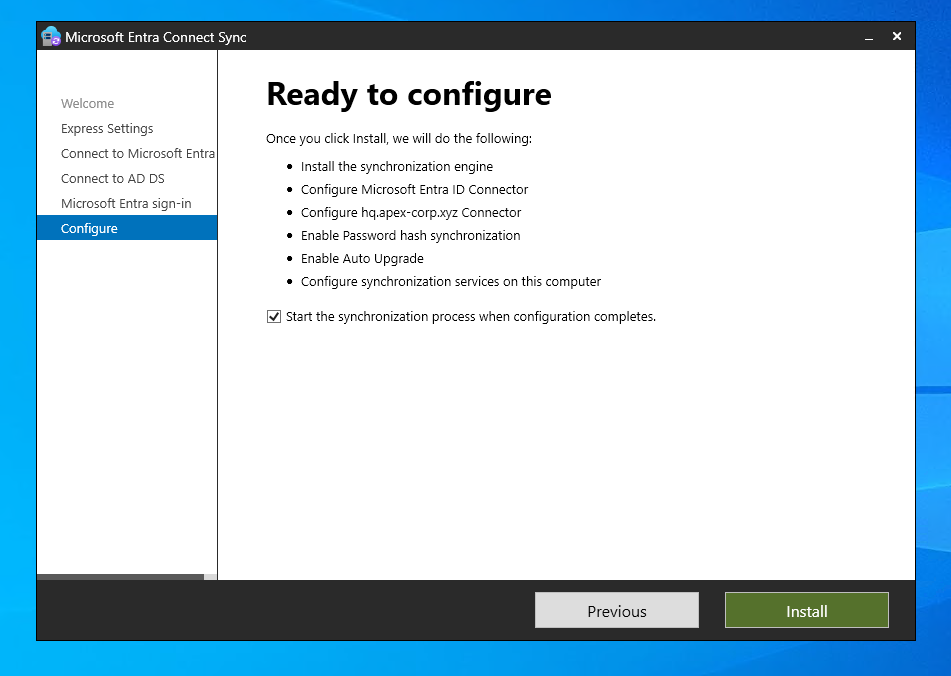
The "Ready to Configure" screen showed what it would do — install sync engine, configure password hash sync, and start the first sync:
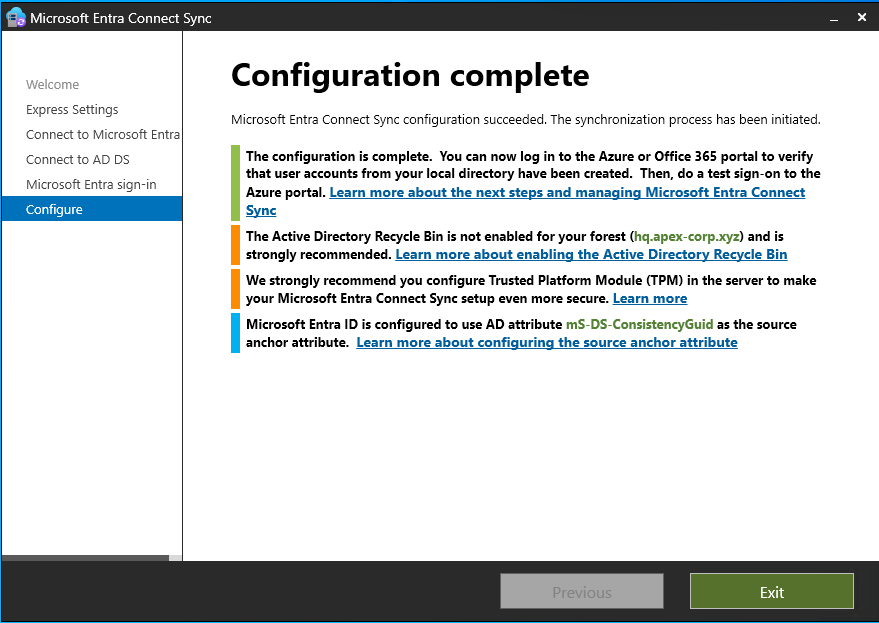
Clicked Install. Configuration completed successfully:
Step 9 — Verify the Sync
Went back to Azure portal. Under Groups, the local AD groups were now showing in Azure:
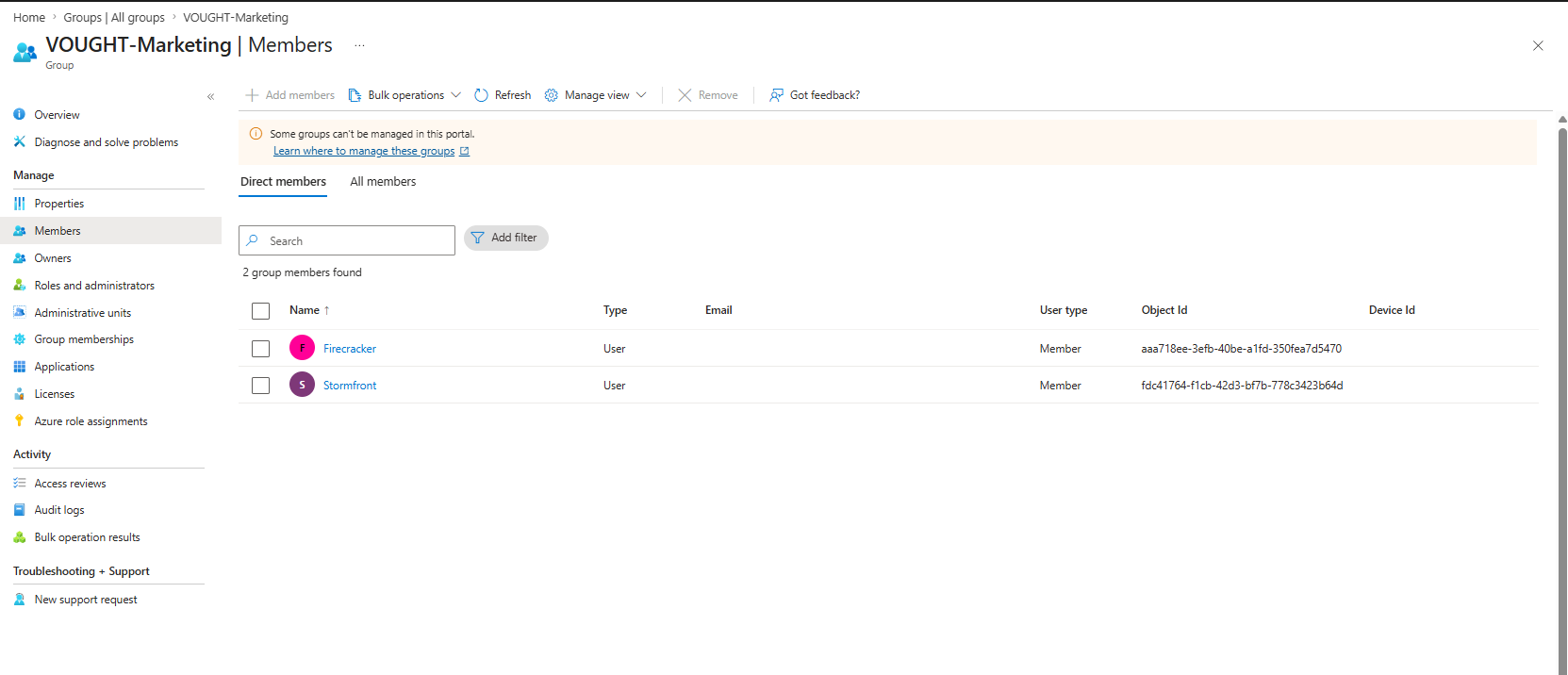
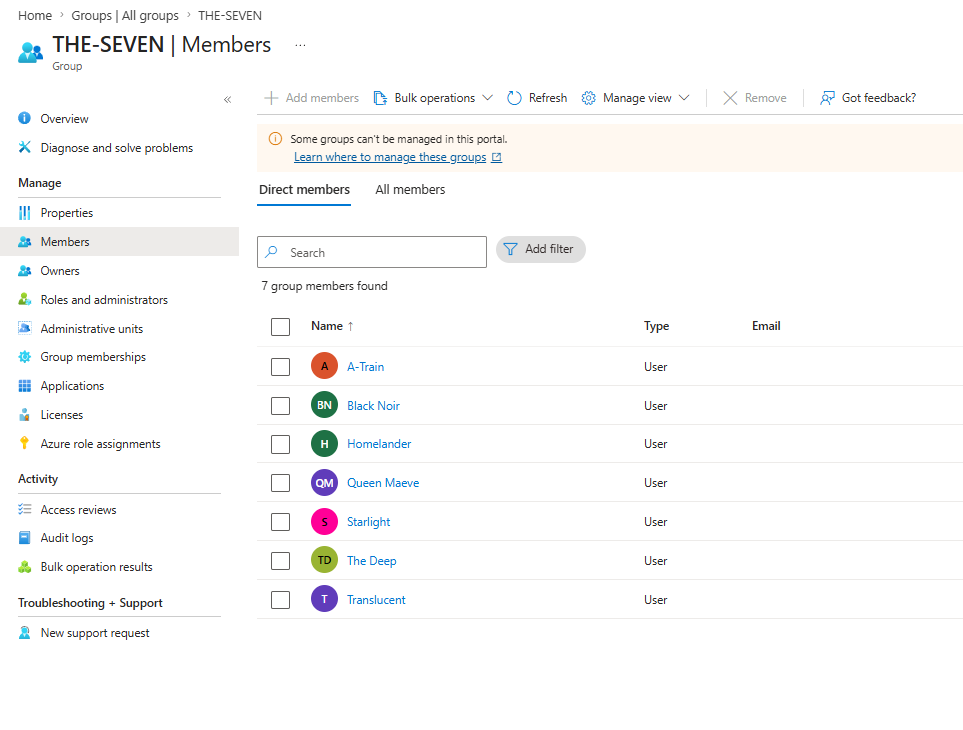
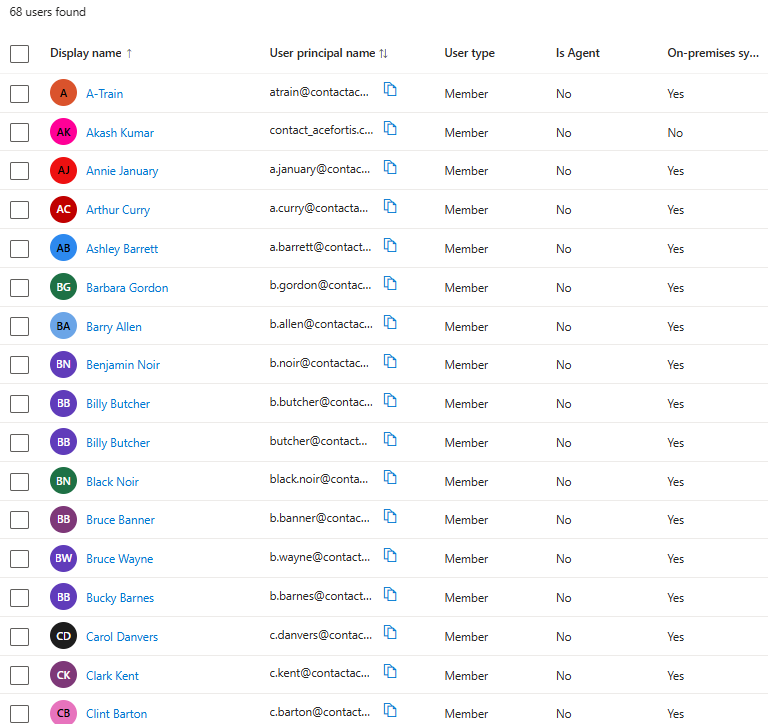
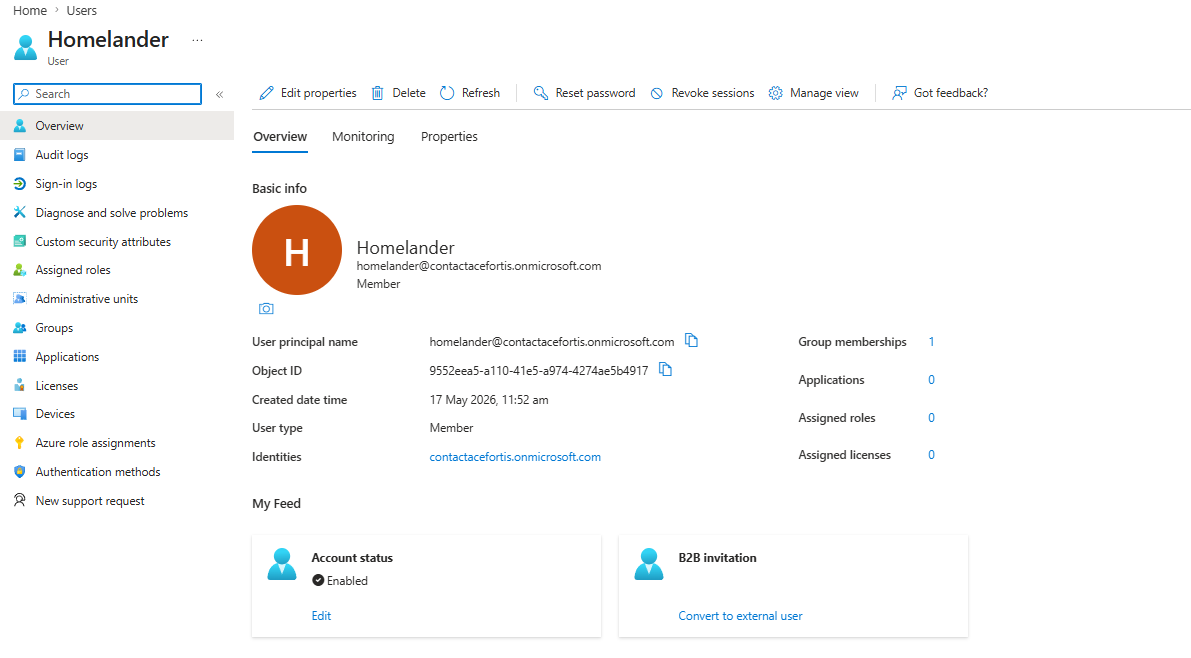
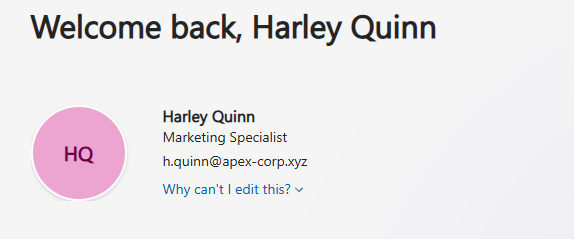
Opened Homelander's profile — all properties synced from local AD:
Step 10 — Test Cloud Login with Synced Accounts
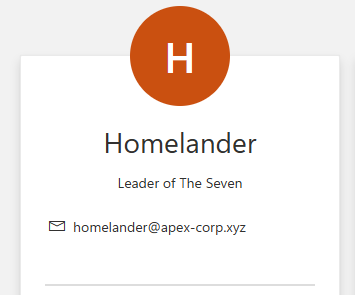
Before the UPN fix, users would show up with .onmicrosoft.com addresses. After running the bulk update script and forcing the sync:
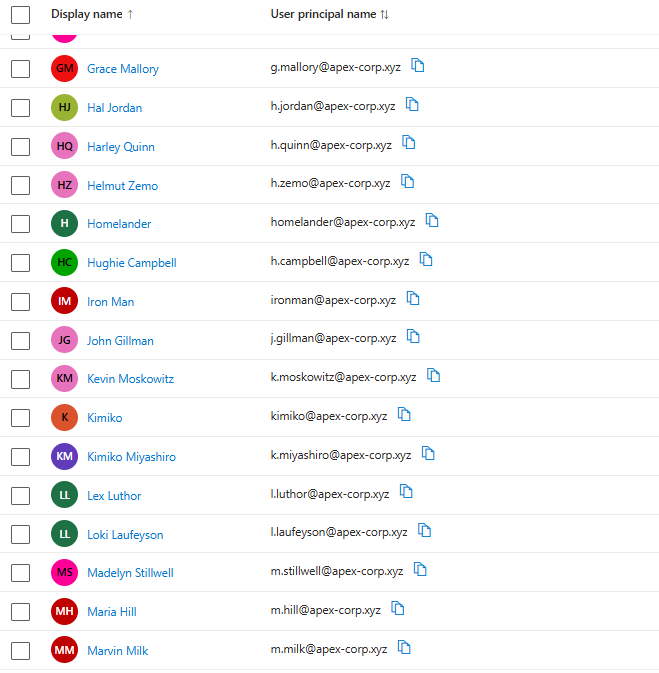
Test with Tony Stark (Iron Man): Typed [email protected] at the Microsoft login page — recognized the account and asked for the domain password.
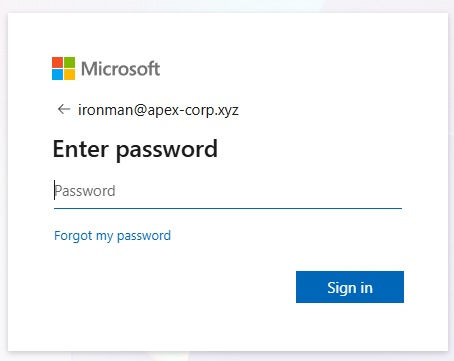
Test with Harley Quinn: Logged in with the marketing specialist account — worked correctly, session active.
Password: (domain AD password)
UPN: [email protected]
Tenant: apexcorp.onmicrosoft.com
Sign-in type: Password Hash Sync (PHS)
Step 11 — Sign-In Logs
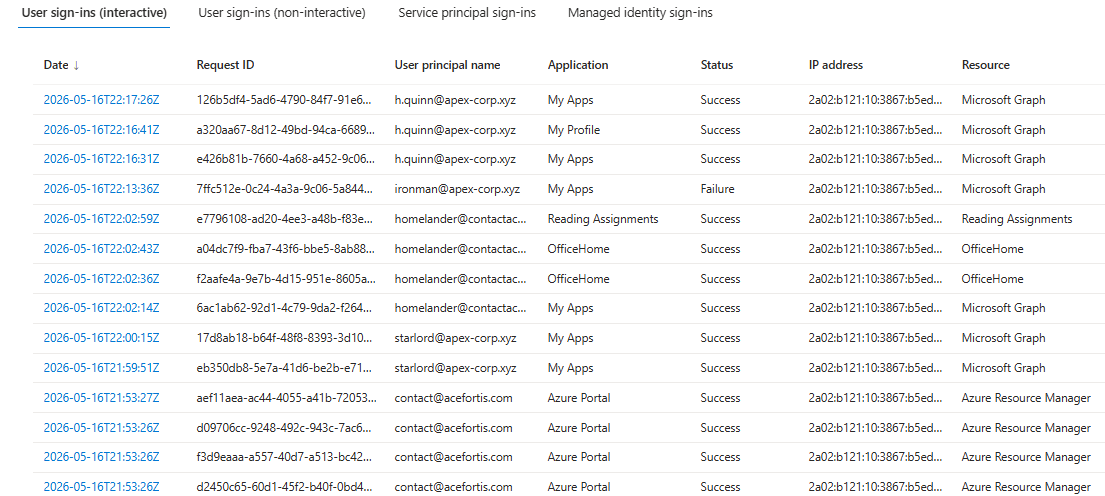
The sign-in log in Azure shows interactive login history — all test logins, what apps were accessed, success or failure. This is useful for the attack surface — it shows which accounts tried to log in and from where.
Step 12 — Vulnerable OAuth App Registration
Registered a fake application called "Apex IT Helpdesk" in Entra ID. This is used as a phishing target — an attacker would send victims a consent phishing email asking them to approve this app. When they click Accept, the attacker gets OAuth tokens granting access to the victim's mailbox and files — no password needed, no MFA required.
In Azure Portal → App Registrations → New Registration → Name: "Apex IT Helpdesk".
Added these API permissions and left them unconsented by an admin:
| Permission | Type | What an attacker gets |
|---|---|---|
Mail.Read | Delegated | Read all emails in the victim's mailbox |
Files.ReadWrite.All | Delegated | Read and write all files in OneDrive |
User.Read.All | Delegated | Read all user profiles in the tenant |
The attack: send a phishing email with a link to "Apex IT Helpdesk — click here to enable your account". The victim clicks Accept on the consent screen thinking it is a real IT app. The attacker now has OAuth tokens for that user — access to their email and files without ever touching their password. MFA does not help here because MFA is for authentication, not for OAuth consent.
After syncing with Entra Connect, domain accounts are in the cloud. An attacker who compromises a local account via Kerberoasting or NTLM relay now also has cloud access. The credentials work on the local network and on Azure, Microsoft Teams, and the web portal. One compromise = both AD and cloud access.